

Hosted server (mcp.cal.com)
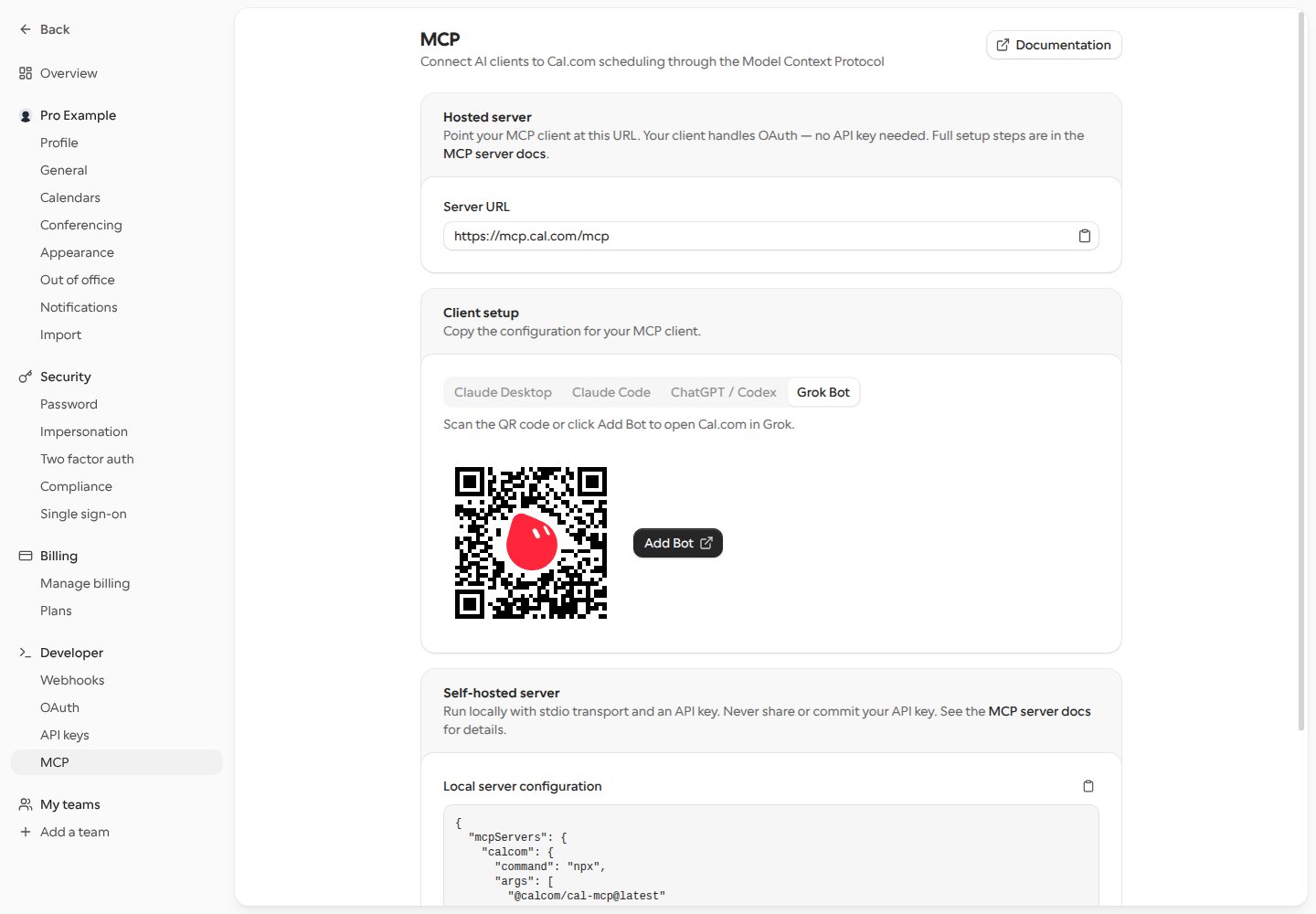
The fastest way to get started is to connect your MCP client directly tomcp.cal.com. The hosted server uses Streamable HTTP transport with OAuth 2.1 authentication — your client handles the authorization flow automatically.
Connect your client
Point your MCP client to the hosted server URL:POST /oauth/register or identify themselves with a Client ID Metadata Document (an https client_id URL). Before the Cal.com sign-in, you see a consent page naming the client and the host you’ll be sent back to.
The consent screen also asks for team scopes to create, edit and delete team event types and to view and manage team memberships, so your AI client can set up team event types and add people to teams. It also asks for the organization profile scopes, so an organization admin’s AI client can list, create, edit and delete the organization’s teams. Cal.com still checks your role and permissions in the team on every call. It also asks to view, add, rename and remove your personal contacts (
CONTACT_READ, CONTACT_WRITE). If you connected before these scopes were added, disconnect and reconnect the server to grant them.- Claude Desktop
- Cursor
- VS Code
- fx
- Grok
Add the following to your
claude_desktop_config.json:- macOS:
~/Library/Application Support/Claude/claude_desktop_config.json - Windows:
%APPDATA%\Claude\claude_desktop_config.json
Self-hosted server (stdio)
If you prefer to run the server locally, you can use stdio transport with an API key. This is useful for development or when you want full control over the server.Prerequisites
- Node.js >= 18
- A Cal.com API key — generate one in Settings → Developer → API Keys
Connect your client
Add the following to your MCP client’s configuration:cal_live_xxxx with your actual API key.
Toolsets
You can restrict which tools the server registers for a session by appending atoolsets query parameter to the server URL:
profile, event-types, events, bookings, availability, schedules, calendars, contacts, teams, organizations, routing-forms, catalog (the find_api_operation / describe_api_operation / call_api_operation meta-tools). Unknown names are rejected with 400 invalid_request. Omitting the parameter registers every tool; the local tools get_app_link and search_docs are always registered regardless of the selection. For a self-hosted stdio server, set MCP_TOOLSETS instead.
Interactive views (MCP Apps)
In clients that support MCP Apps,get_availability and get_bookings also show an interactive view in the chat, so you can pick times and manage bookings by clicking instead of typing:
- Slot picker (
get_availability): open times grouped by day. Use the arrows to move to earlier or later dates, click a time, enter the attendee’s name and email, and click Book. When the assistant is finding a new time for an existing booking, clicking a time offers Move booking here instead. - Bookings (
get_bookings): one card per booking with its time and attendees. Upcoming bookings have Join (when the booking has a meeting link), Reschedule, which shows open times for the next week to pick from, and Cancel, which asks you to confirm in the card first.
create_booking, reschedule_booking and cancel_booking tools on your existing connection, and the assistant is told what you did.
The views are available only when both the
bookings and availability toolsets are enabled, which is the default when you don’t pass toolsets. Clients without MCP Apps support get the same text results as before.Available tools
The MCP server exposes 76 tools organized by category:App links
Documentation
User profile
Event types
Events
Cal Events are fixed-date RSVP pages served atcal.com/{slug} — not event types and not calendar events. Both tools need the EVENT_READ OAuth scope.
Bookings
Schedules
Availability & calendars
Contacts
Your personal contacts from your Contacts page — never team or organization members. The list needs theCONTACT_READ OAuth scope and the writes CONTACT_WRITE.
Teams & memberships
Organizations
Routing forms
API catalog
Example prompts
Once connected, you can interact with Cal.com using natural language:- “What bookings do I have this week?”
- “Create a 30-minute event type called ‘Quick Chat’”
- “Cancel my meeting with John tomorrow”
- “Show me my available slots for next Monday”
- “Reschedule my 2pm meeting to Thursday at 3pm”
- “What event types do I have?”
Related resources
- AI agents guide — build AI agents using the Cal.com API directly
- API v2 reference — full API endpoint documentation
- GitHub repository — source code