

Who can message guests
Message guests and Message history appear on the event’s Guests board for:- The event’s hosts
- Team members whose role lets them edit the team’s events
- The owner of a personal event
Send a message
1
Open the Guests board
Go to Events, open the event, and select Attendance → Guests.
2
Open Message guests
Select Message guests in the toolbar. On a phone, select Message guests in the bar at the
bottom of the screen instead. It’s there on every tab of a published event and takes you to
Guests.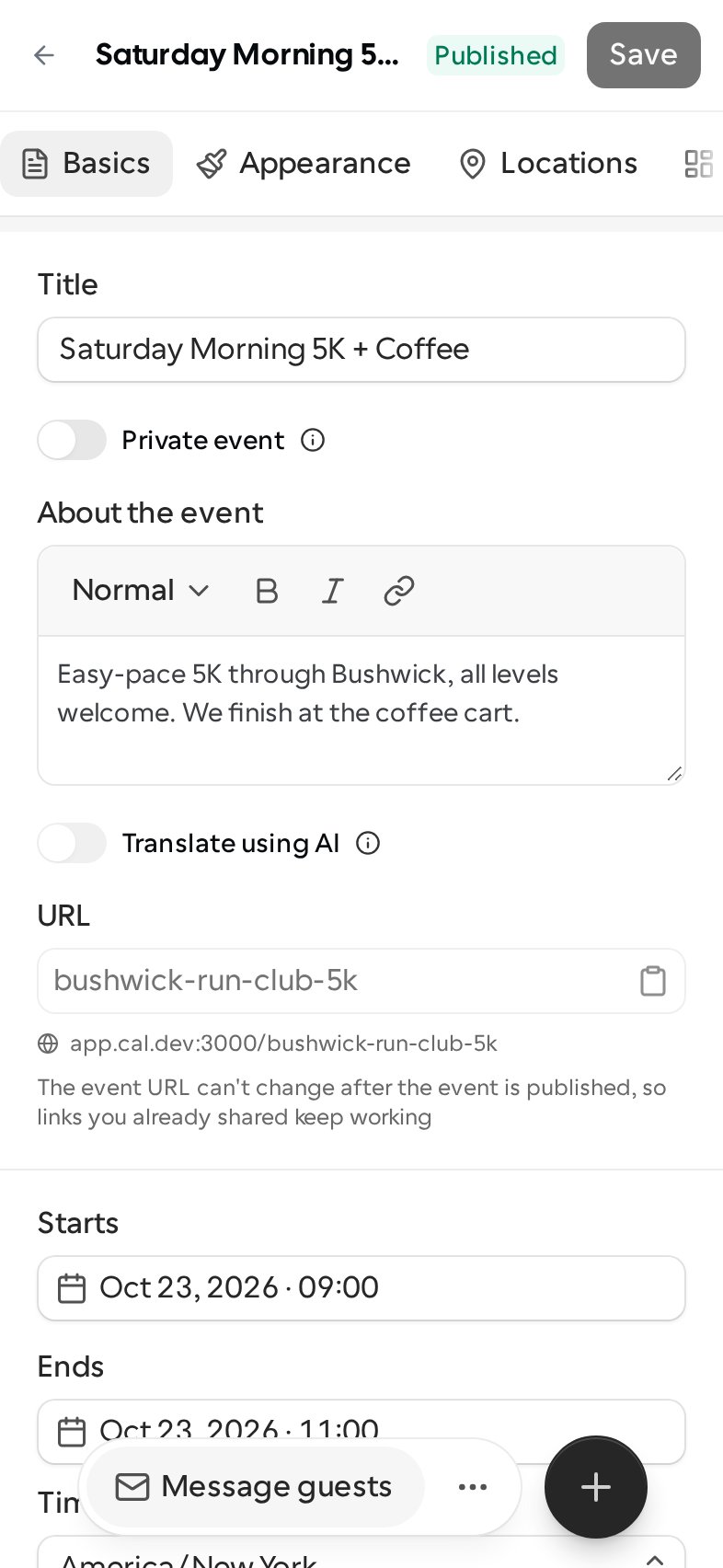
3
Choose who gets it
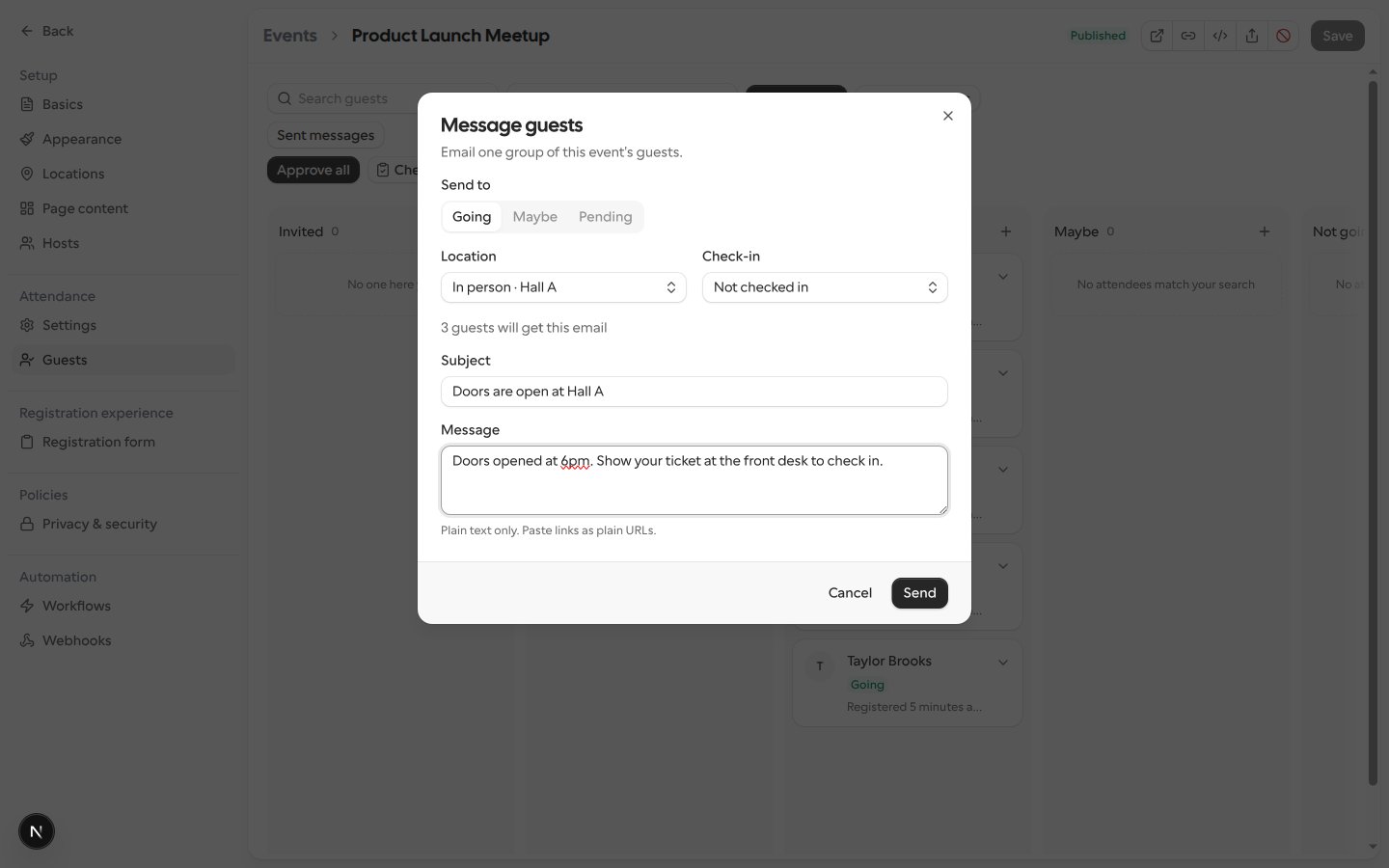
Under Send to, pick one group: Going, Maybe or Pending. On desktop the dialog
opens on Going; on a phone it opens on the group you’re filtering by. The dialog shows how many
guests will get the email.
4
Narrow it down (optional)
Use Check-in to send only to guests who have Checked in or are Not checked in; leave
it on Any to include both. If the event has more than one location, you can also pick one
under Location to send only to guests who chose it, or leave it on All locations. The
dialog opens on the location the Guests board is filtered by, and the guest count updates to
match your choices.
5
Write the message
Enter a Subject and a Message. Messages are plain text; paste links as plain URLs.
6
Send now or later
Under When, leave Send now selected to send straight away, or choose Send later to
pick a date and time. See Send a message later.
7
Send
Select Send, or Schedule if you chose a time. For a message sent now, a toast shows its
status while it goes out.
When you send to Going without choosing a Location or Check-in option, the event’s
accepted co-hosts get the message too, and the guest count includes them. Their email has no
unsubscribe link. A co-host who also registered as a guest gets it only if their registration is in
the group. Co-hosts aren’t added to Maybe or Pending, and the event’s hosts aren’t added to
any group.
Invited people who haven’t RSVP’d, and guests who declined or cancelled, can’t be messaged.
Location and Check-in only narrow the group you picked, so they never add guests from
outside it. Only confirmed guests can check in, so Pending with Checked in has no one to send to.
Pending guests aren’t admitted yet, so their email doesn’t include the venue or join link.
- Guests who RSVP’d by phone have no email address, so they’re skipped. The dialog tells you how many before you send.
- Guests who unsubscribed from host messages for the event are skipped. Guests can unsubscribe from the link in a host message; they stay registered and still get essential updates, like a time change or a cancellation.
Send a message later
Choose Send later under When to send the message at a time you pick, for example an hour before doors open. Select the date and time; they’re in the event’s time zone, which the dialog shows under the picker, and the dialog confirms when the message will be sent. Then select Schedule. The time has to be at least 5 minutes from now and no later than 7 days after the event ends. Everything else works as for a message sent now, with one difference: the guests are worked out when the message goes out, not when you schedule it. Someone who registers before then gets it, and someone who unsubscribes before then doesn’t. If the event is cancelled or unpublished before the time, nothing is sent. A scheduled message shows in Message history as Scheduled for its time. Open it to read its Subject and Message, with its line breaks, and check what will go out. To cancel it, select Cancel message. You can cancel until its time arrives. A cancelled message is never sent, and guests aren’t told.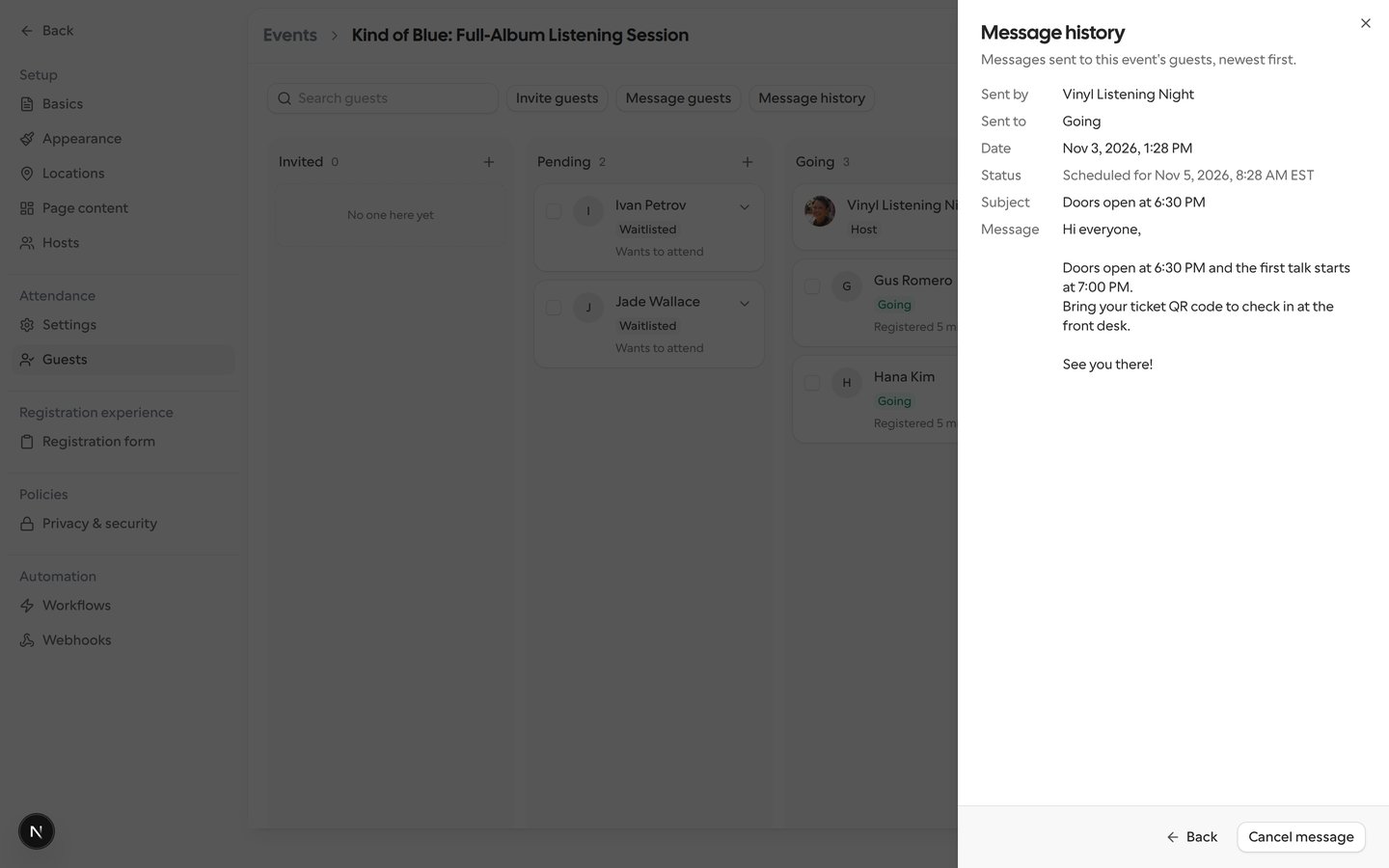
View message history
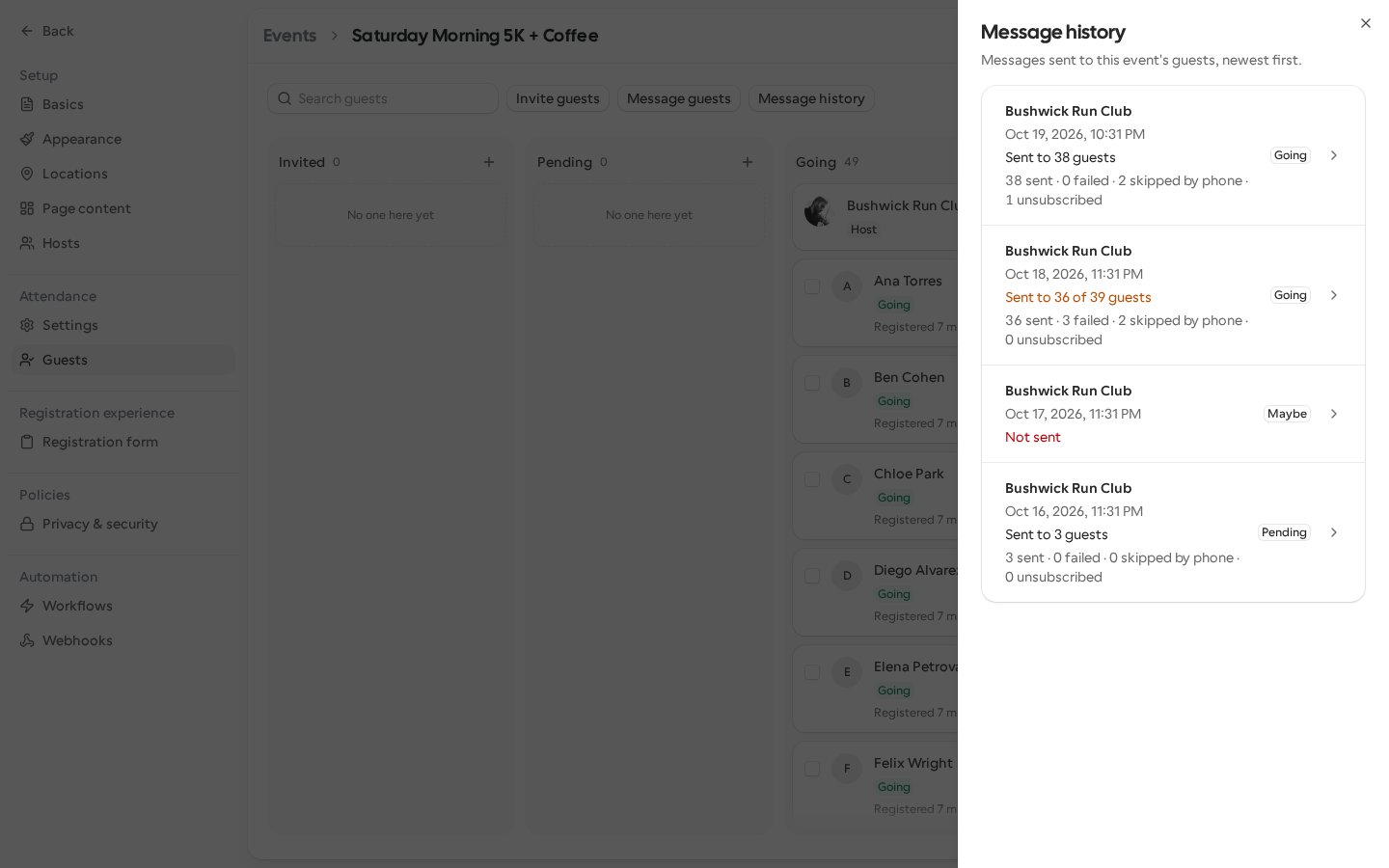
Select Message history next to Message guests on the Guests board. On a phone, select ⋯ in the bar at the bottom of the screen, then Message history. The panel lists the event’s messages newest first, 20 at a time; select Load more to see older ones. If nothing has been sent yet, the panel says No messages sent yet.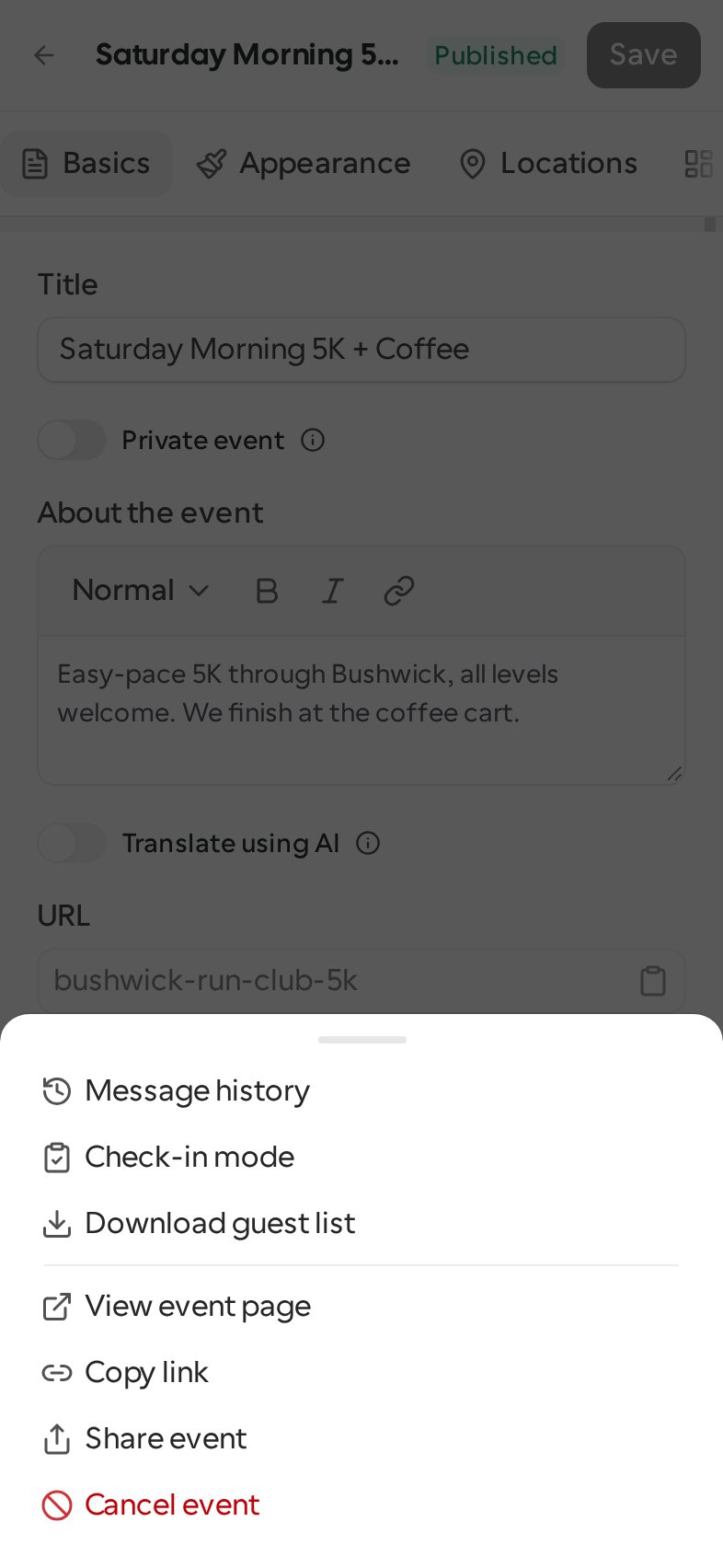
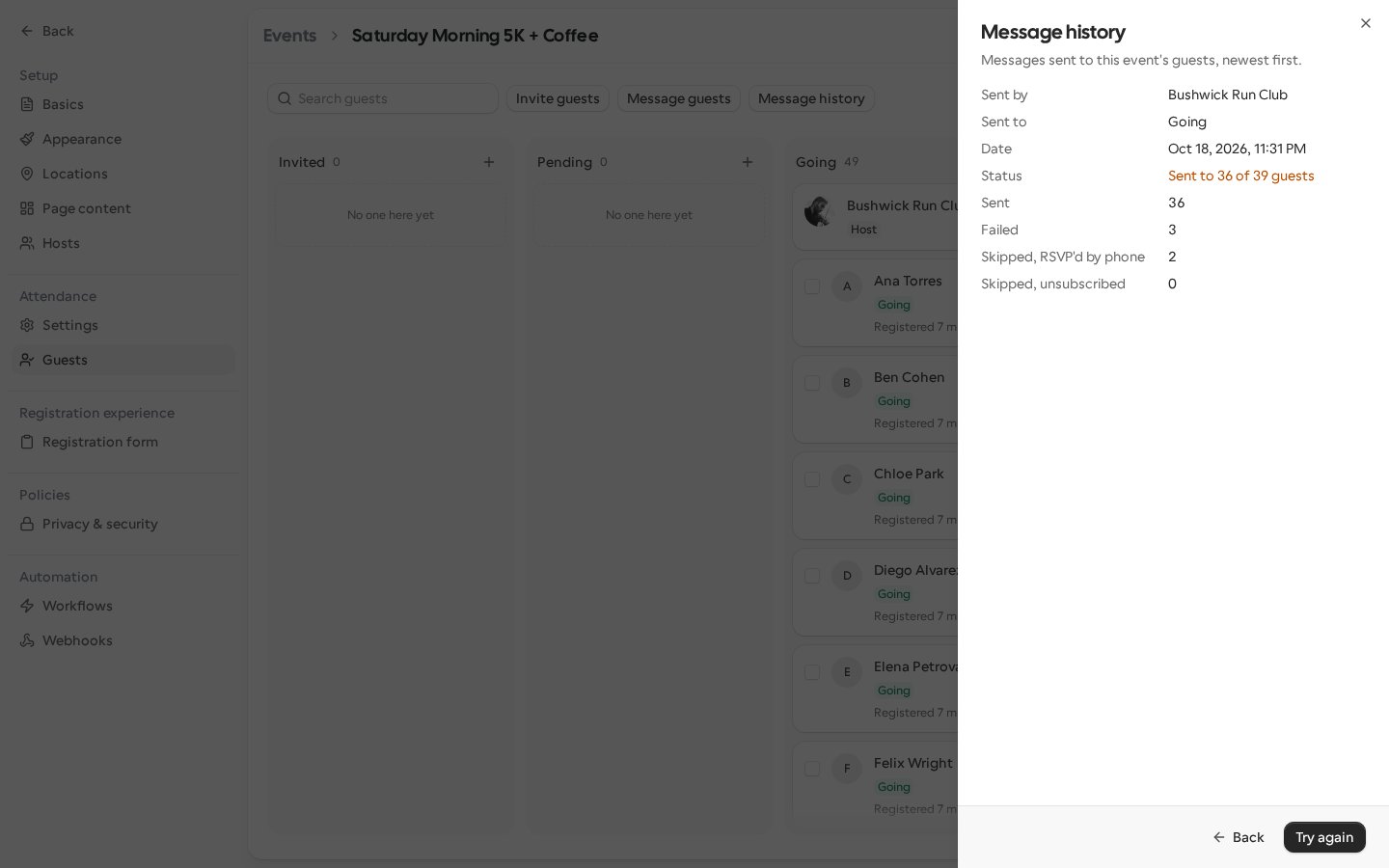
- The sender’s name (Deleted user if their account has been deleted, Unnamed user if they have no name)
- When the message was sent
- The group it went to: Going, Maybe or Pending
- Its status
- Once sending has finished and at least one guest received it, the counts on one line: sent, failed, skipped by phone and unsubscribed
Statuses
Retry a failed message
When a message reads Sent to N of M guests or Not sent, its details may show Try again. Select it to send the message again. Guests who already received the message don’t get a second copy. The group is checked again, with the same location and check-in choices, so guests who were already registered and have since moved into it, for example by being approved, can receive it; guests who registered after the original send still don’t. The row then reads Sending… and updates on its own until sending finishes. Try again isn’t offered when:- The message was sent, is still sending, or is waiting for its scheduled time
- The message reads Not sent. This event can no longer be messaged.
- The message is more than 30 days old, counted from its scheduled time if it had one
- The message has already been retried the maximum number of times
Send and list messages with the API
You can also message an event’s guests and list its sent messages with API v2. Both endpoints follow the same access rules as the Guests board, so co-hosts can’t use them, and sends count toward the same daily limits.
A send returns the message’s
id, a status of QUEUED (or FAILED_TO_QUEUE if nothing could be
sent), recipientCount, the number of guests and co-hosts who’ll be emailed, and skippedPhoneCount, the number
skipped because they RSVP’d by phone. The message then goes out in the background; list the event’s
messages to follow it. In the list, status is SENDING, SENT, PARTIALLY_SENT, NOT_SENT or
NOT_SENT_EVENT_UNSENDABLE, matching the statuses above. counts is filled in only for SENT and
PARTIALLY_SENT; it’s null while the message is sending and whenever nothing was delivered. To
get the next page, pass pagination.nextCursor from the previous response as the cursor query
parameter.
With an OAuth access token, sending needs the EVENT_WRITE scope and listing needs EVENT_READ.
Retrying a message is only available from Message history on the Guests board.
Limits
- You can message an event’s guests while it’s published and not cancelled, until 7 days after it ends.
- A message can go to at most 1,000 guests with an email address. If the group is larger, Send is disabled.
- The subject can be up to 200 characters and the message up to 5,000 characters. HTML and script links aren’t allowed.
- Each person can send up to 20 messages a day, and each event can have up to 5 messages sent a day.