

Who can mark no-shows
The same people who can check guests in can mark and unmark no-shows:- The event’s hosts and co-hosts
- Team members whose role lets them edit the team’s events
- The owner of a personal event
Mark a guest as a no-show
1
Open the Guests board
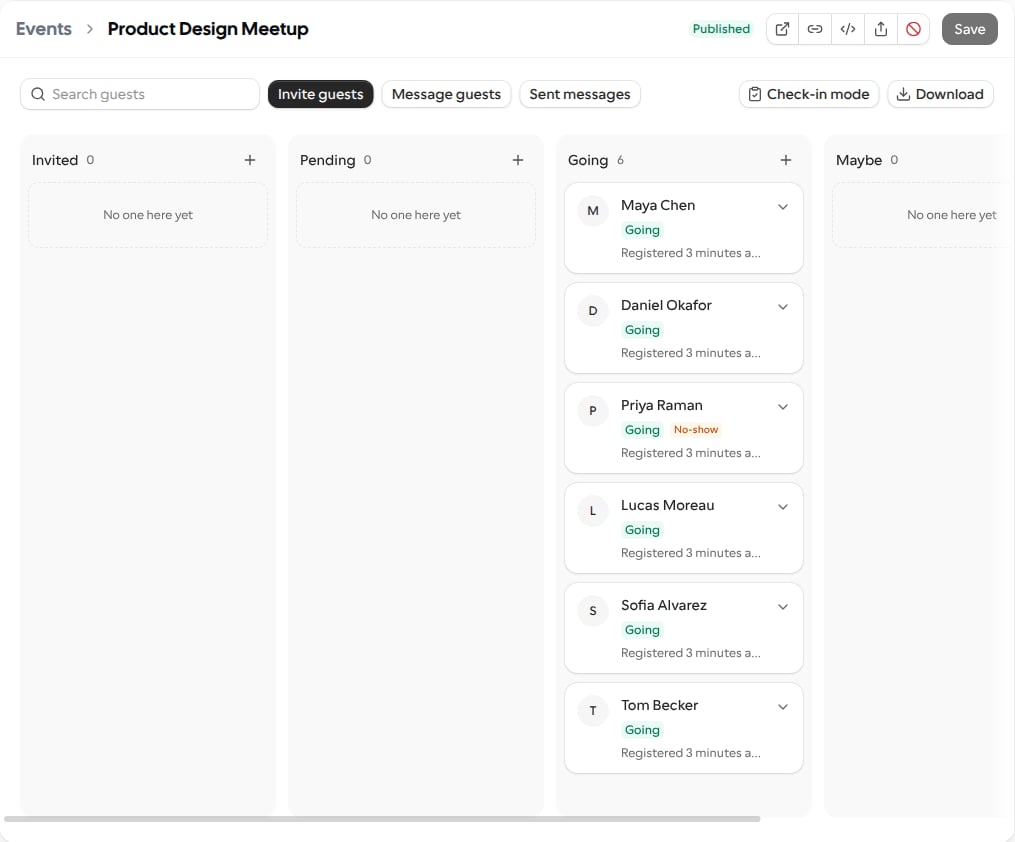
Go to Events, open the event, and select Attendance → Guests.
2
Open the check-in roster
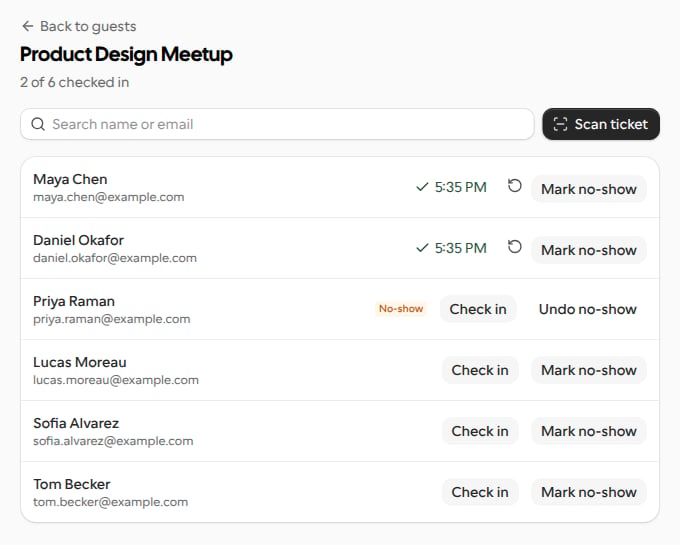
Select Check-in mode. The roster lists the event’s confirmed guests. Use Search name or
email to find a guest.
3
Mark the guest
Select Mark no-show on the guest’s row. For a guest who is already checked in on a phone,
select the options button on their row, then Mark no-show.
Undo a no-show
Select Undo no-show on the guest’s row. On a phone, select the options button on the row, then Undo no-show. A No-show removed toast confirms the change and the guest is shown as not checked in again. You can undo a no-show at any time.No-shows and check-in
A guest can be checked in or marked as a no-show, never both:
Checking in follows the usual check-in window, from 12 hours before the event starts until 12 hours
after it ends. After the window closes you can still mark and unmark no-shows, but you can’t check a
guest in.
Where no-shows appear
- Check-in roster: a No-show badge on the guest’s row.
- Guests board: a No-show badge next to the status of confirmed guests marked as a no-show.
- CSV export: the file you get with Download on the Guests board has a
no_showcolumn, afterlocationand before the answers to registration questions. It readsyesfor guests marked as a no-show and is empty for everyone else.
What a no-show doesn’t change
On free and paid events alike, marking a guest as a no-show:- Doesn’t change their registration status. They stay confirmed.
- Doesn’t release their seat or change the event’s capacity, so no one is moved off the waitlist.
- Doesn’t trigger the Booking No-show Updated webhook, or any workflow or app sync that runs when a booking’s attendee is marked as a no-show.