

is out on <day> instead. The emoji comes from
the entry’s reason.
Who can set it up
The Integrations tab on the out-of-office page is shown only to people who have permission to update a team or an organization, such as team and organization admins. An admin sees a Slack card for each team or organization they manage that has Slack installed, and can pick a channel only for those.Set up a team or organization channel
1
Install Slack for the team or organization
In the App Store, open Slack and install it on the team or organization account.
2
Open the Integrations tab
Go to Settings > My Account > Out of office and select the Integrations tab.
3
Pick a channel
Find the card titled Slack · <team or organization name>. Under Post OOO messages to,
select a channel from the list of the workspace’s channels.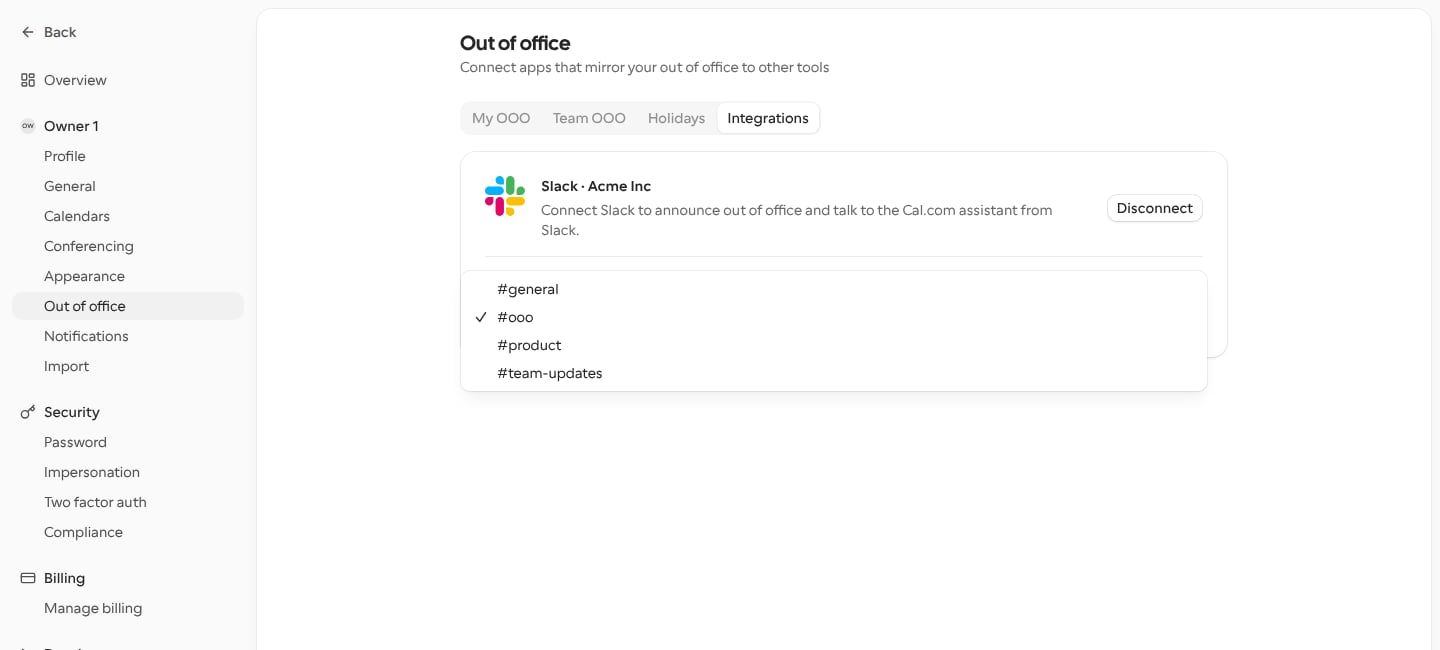
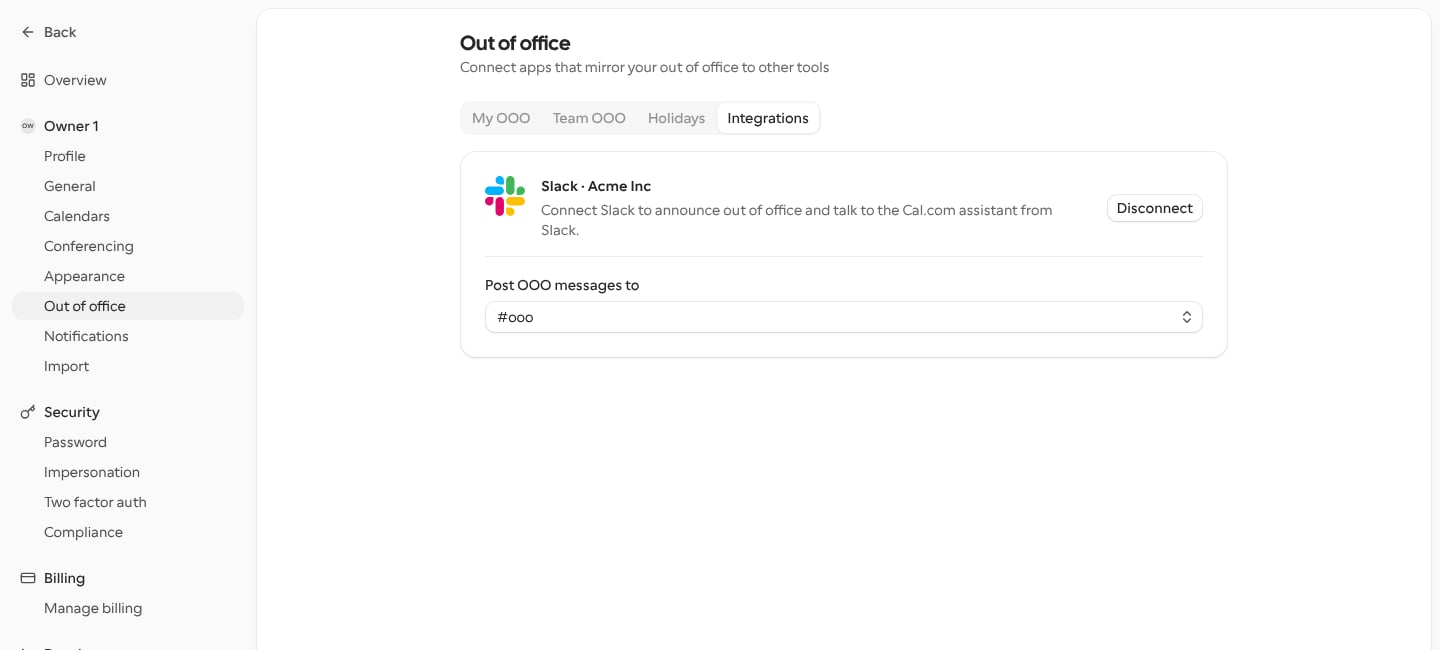
Entries that already existed when the channel was picked aren’t posted right away. An entry that
was never announced is posted the next time it’s edited.
What happens in Slack
Edits and deletes rewrite the messages where they were originally posted, even if the channel has
been changed since.
Notes are included in the message
The entry’s note is added after the dates, following a colon, even when Show note on public booking page is turned off. That option only controls whether the note appears on the public booking page. An entry with no note, or a note that is only spaces, is posted without one.Day-before reminder in Slack
When an entry is posted in Slack and is saved more than 24 hours before it starts, Slack also gets a reminder 24 hours before the start:When more than one channel applies
Each entry is posted at most once in Slack, even if several channels cover the member:- A channel the member picked on their own Slack card wins over any team or organization channel.
- Otherwise, if the member belongs to several teams or organizations with a channel, the channel that was set up first is used.