

Send a reaction
1
Open the reaction picker
In the call’s control tray, select the heart-shaped React button. On a phone the button stays
in the tray next to Chat instead of moving into the overflow menu.
2
Pick an emoji
Select one of the nine reactions. The picker stays open, so you can send the same emoji again, or
a different one, without reopening it.
3
Close the picker
Click outside the picker, press Escape, or select React again.
What participants see
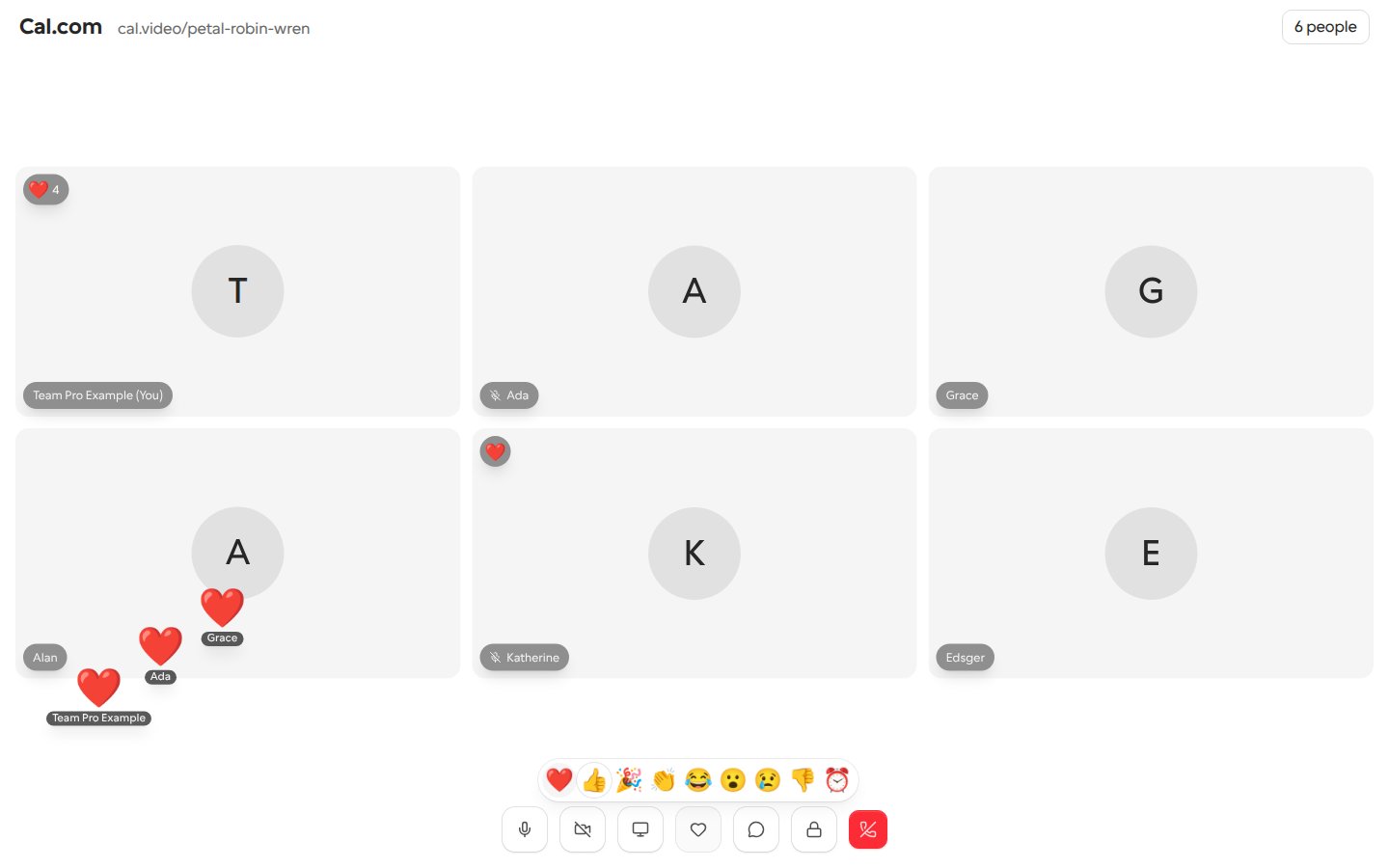
Floating reactions
Each reaction rises from the bottom-left of the call area with the reactor’s name under it, then fades out. Reactions start from the same place in every layout, including the grid, a screen share and pinned participants, so they never cover the middle of a shared screen. They stay inside the call area and never appear over the control tray, the header or an open side panel such as chat. To keep the call readable, about six reactions float at once at most. When more arrive, the extra ones skip the float and only update the reactor’s tile.Tile reactions
A reaction also appears as a small badge in the top-left corner of the reactor’s video tile for about four seconds. If the same person sends the same emoji again within about three seconds, the badge shows a running count, for example ❤️ 4. The count restarts when they switch to a different emoji or pause for longer. If the reactor’s tile isn’t on screen, for example because they’re counted on the +N others tile, their avatar moves to the front of the people button in the call header, with their reaction in a small badge on its corner. In a Cal Audio room, the badge appears on the participant’s avatar and the reaction floats up from the room’s bottom-left corner, as in a video call.Bursts
When one person sends the same emoji four times within about three seconds, a burst of about eight copies of that emoji fans out from the bottom-left of the call area. Only one burst plays at a time, and a new one can’t start until about five seconds after the last.Raise your hand
Raise your hand to ask to speak without interrupting. Hosts see who has a hand up and in what order, and can lower hands once each person has had the floor. Every participant who has joined the call can raise their hand, including guests.Raise or lower your hand
- On a computer or tablet: select the hand-shaped Raise hand button next to React in the control tray. The button stays pressed while your hand is up, and its tooltip changes to Lower hand. Select it again to lower your hand.
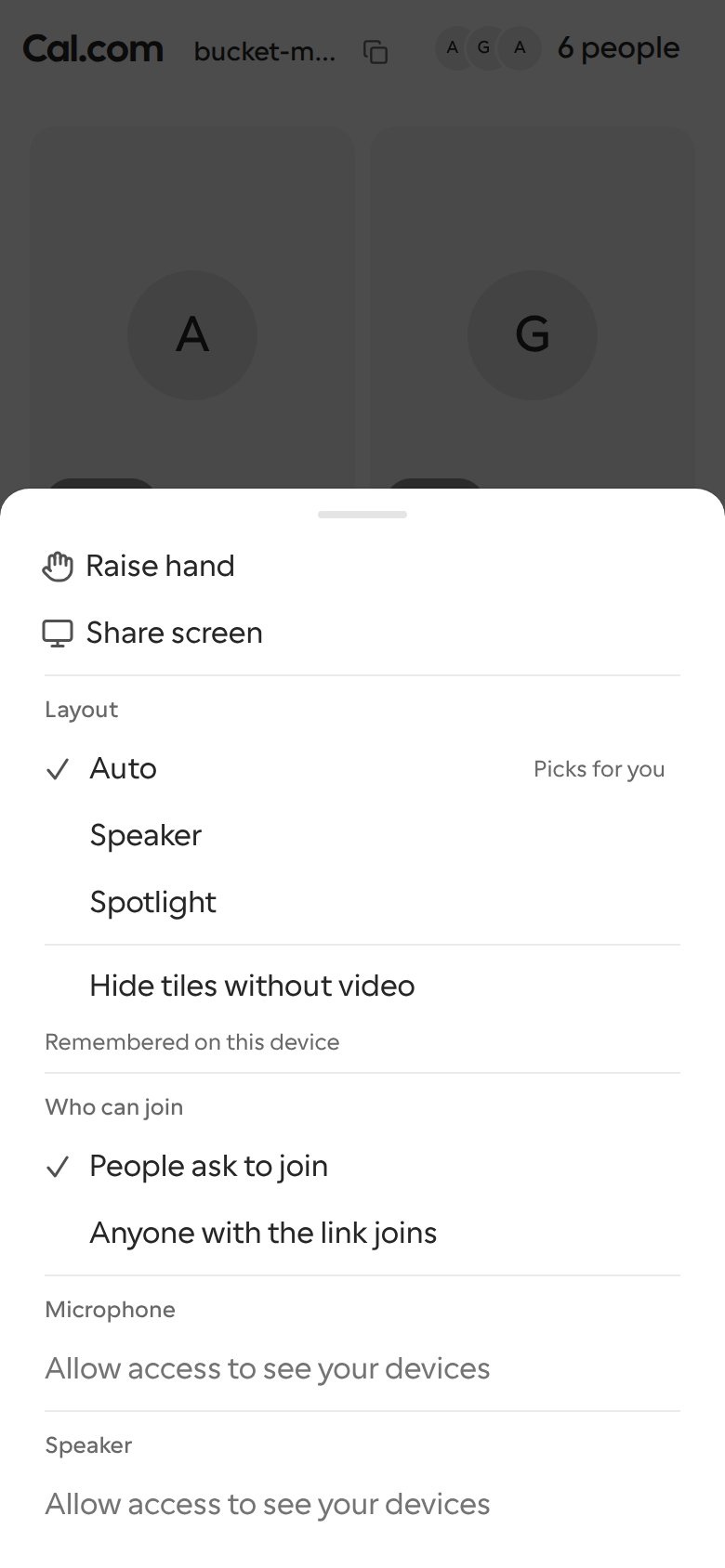
- On a phone: select More options in the control tray, then select Raise hand, the first item in the menu. The menu closes, and your tile shows a hand while it’s up. Open More options again and select Lower hand to put it down. The React picker only holds the nine emojis.
- With the keyboard: press Option+H on a Mac or Alt+H on Windows and Linux to raise or lower your hand. The shortcut also works while you’re typing in the chat.
Raised hands in the call
While your hand is up, everyone in the call sees a hand badge in the top-right corner of your tile, opposite any reaction badge, and the hand gives a short wave when it first appears. In a Cal Audio room the hand shows on the top-right corner of your avatar instead. Hands are queued in the order they were raised. When more than one hand is up, each badge shows the person’s place in the queue before the hand, for example 2 ✋, and the first person in the queue has a blue badge. Everyone in the call sees the same order, including people who join late or reload the page. If there are more people in the call than fit on screen, people with a hand up are brought onto the screen so they stay in view. Open the People panel to see a Raised hands section listing everyone with a hand up, in queue order. Their rows under In the meeting also show a hand.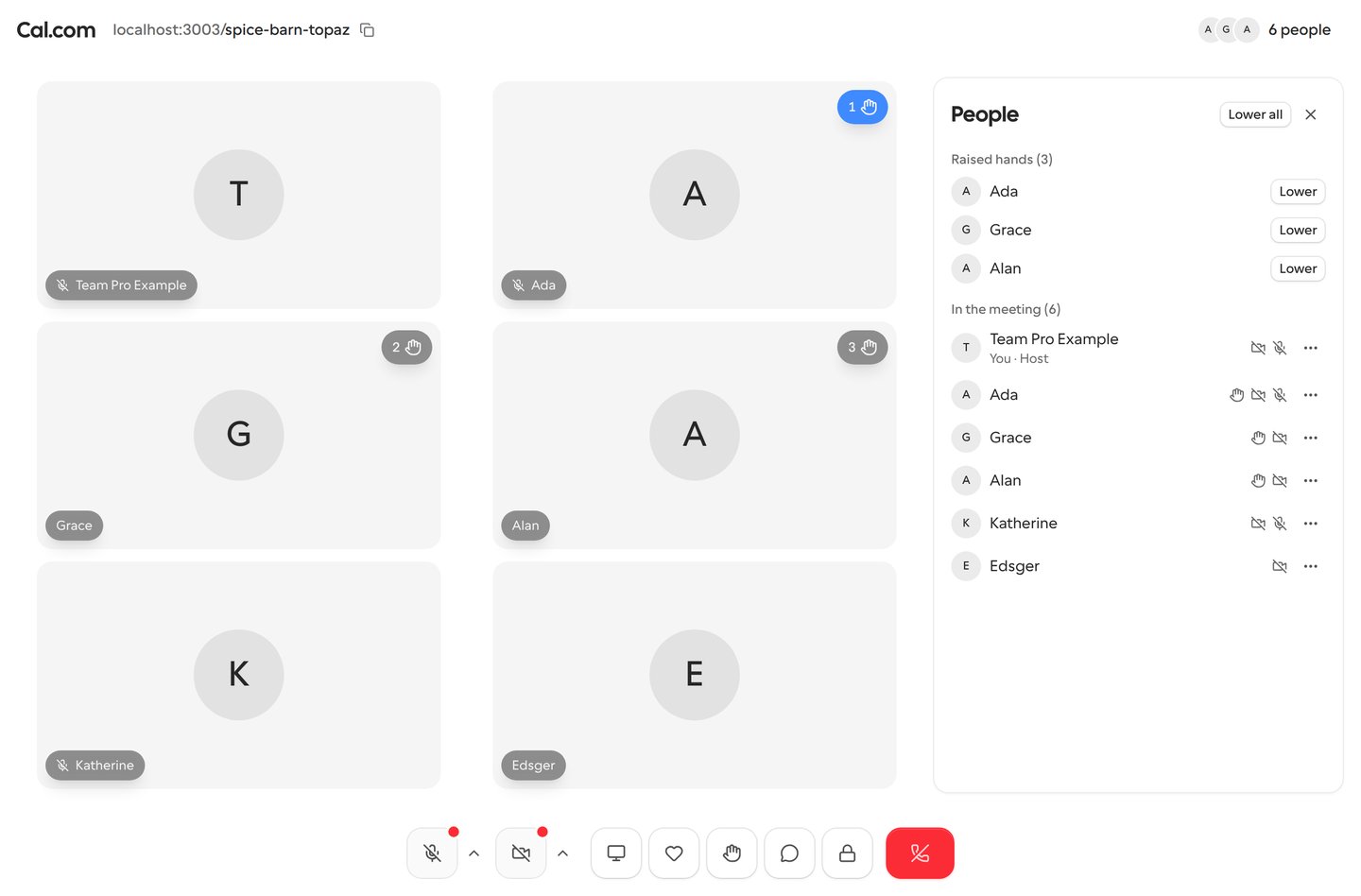
For hosts
When another participant raises their hand, hosts hear a short, quiet sound, at most once every two seconds however many hands go up, and screen readers announce it, for example “Ada raised their hand”. Hosts aren’t alerted for hands that were already up when they joined, and guests aren’t alerted at all. Hosts can lower other people’s hands from the People panel:- Select Lower next to a person in the Raised hands section, or Lower hand in that person’s menu.
- Select Lower all at the top of the panel to lower every hand at once.
Raised hands in large calls
When a call has more people than fit on screen, a participant who raises their hand is brought onto the screen straight away, so hosts can see who wants to speak. See Cal Video layouts for how raised hands are ordered and who stays on screen.Reduced motion
If your device’s operating system is set to reduce motion, reactions don’t float or burst on your screen. You still see the badge on the reactor’s tile. Other participants see reactions according to their own settings. A raised hand’s badge still appears, but its hand doesn’t wave and its queue number doesn’t animate. For screen reader users, a raised hand and a reaction are included in the tile’s accessible name while they show, for example “Ada, hand raised”. Reactions are not announced, so they don’t talk over the call’s audio. Like the rest of the call, the React and Raise hand buttons, their labels and the raised hand toasts show in your browser’s language. See Cal Video localization.Availability
Reactions travel over Cal Video’s own chat service, so they work the
same on Daily and RealtimeKit: participants can send reactions and see them float up and on the
sender’s tile, as described above. If the chat service isn’t configured, the React button is
not shown. Raised hands are available in Cal Video calls that run on Daily. Raising hands isn’t available
on RealtimeKit, so the Raise hand button is not shown and the Option+H (Alt+H) shortcut
does nothing.