

Sync goes one way, from Cal.com to Deel. Changes made directly in Deel are not copied back into
Cal.com.
Who can set it up
The Integrations tab on the out-of-office page is shown only to people who have permission to update a team or an organization, such as team and organization admins. Anyone else doesn’t see the tab.Set up Deel out-of-office sync
1
Open the Integrations tab
Go to Settings > My Account > Out of office and select the Integrations tab.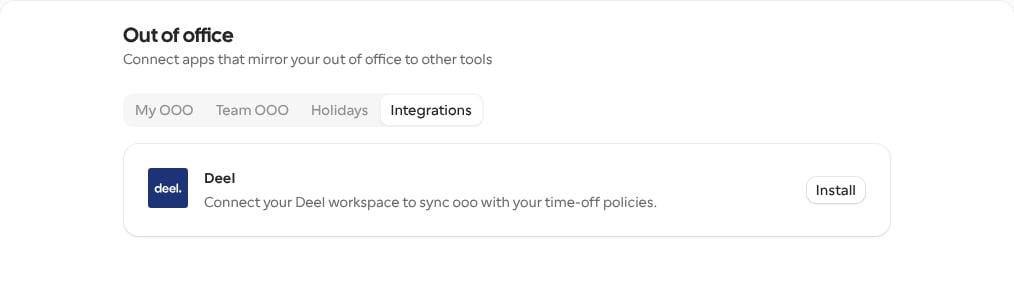
2
Connect Deel
Click Install on the Deel card and authorize Cal.com in Deel, or install Deel from the App
Store on a team or organization account. Cal.com asks Deel for the
time-off:read,
time-off:write, worker:write, and people:read permissions so it can read your time-off
types, find your members, and file their time off.3
Map your reasons to Deel time-off types
The Integrations tab shows a card for each Deel connection you manage: your own, and one for
each team or organization install. Cal.com pulls in the Deel time-off types the first time the
card opens; click Sync time off types to refresh them later. The card lists the Cal.com
reasons (Unspecified, Vacation, Travel, Sick leave, and Public holiday). For each one, pick the
Deel time-off type it’s filed as, or leave it Not mapped. Several reasons can use the same
type.
4
Members go out of office as usual
Members keep picking from the same Cal.com reasons in the Go Out of Office dialog. When a
member saves an entry whose reason is mapped on a Deel connection that covers them, Cal.com
files it in Deel as the mapped type. A team or organization connection covers that team’s or
organization’s members, including members of the organization’s sub-teams.
When more than one connection maps a reason
If a member is covered by several Deel connections that map the same reason, Cal.com uses the member’s own connection first, then a team’s, then the organization’s. A Deel time-off type that no longer exists in Deel isn’t used.How entries are matched to Deel
Cal.com files each request for the Deel person whose work email matches the member’s Cal.com email. The comparison ignores letter case and surrounding spaces, and only employments that haven’t ended count. Personal or login emails in Deel are never used. If no Deel person matches, Cal.com doesn’t file a request. The out-of-office entry is still saved in Cal.com.What happens in Deel
Entries whose reason isn’t mapped are never sent to Deel. Uninstalling Deel also stops that
connection’s mappings from applying. If you install Deel again and sync its time-off types, the
mappings apply again.
Edits and deletes made through the API v2 out-of-office
endpoints are sent to Deel the same way.