Choose a layout
1
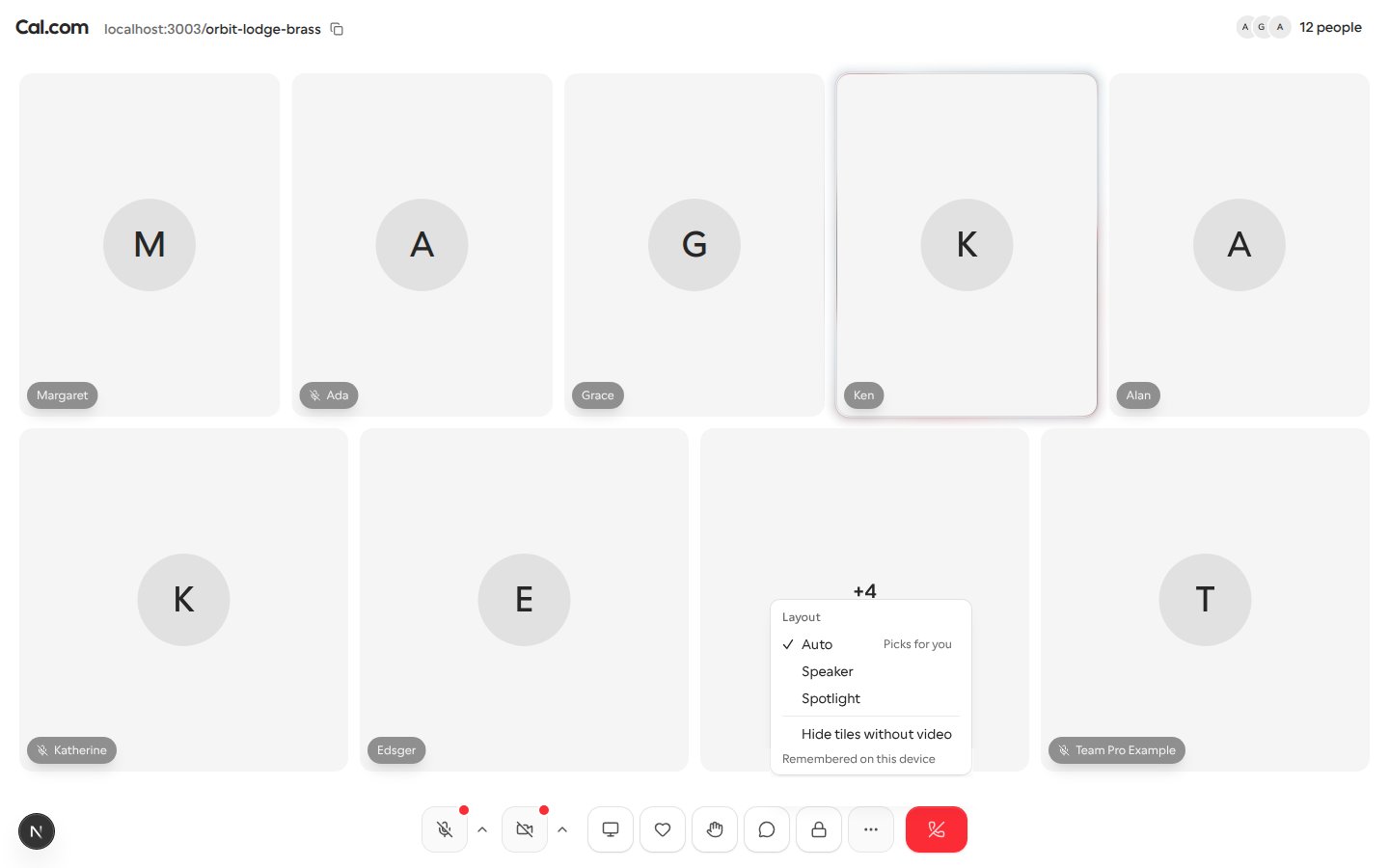
Open the More menu
In the call’s control tray, select More. On a phone, the same options open in a drawer from
the bottom of the screen.
2
Pick a view
Under Layout, select Auto, Speaker or Spotlight. The call changes straight away,
and tiles glide to their new places.
3
Hide tiles without video if you need to
Below the views, turn on Hide tiles without video, described below.
Layouts
Auto
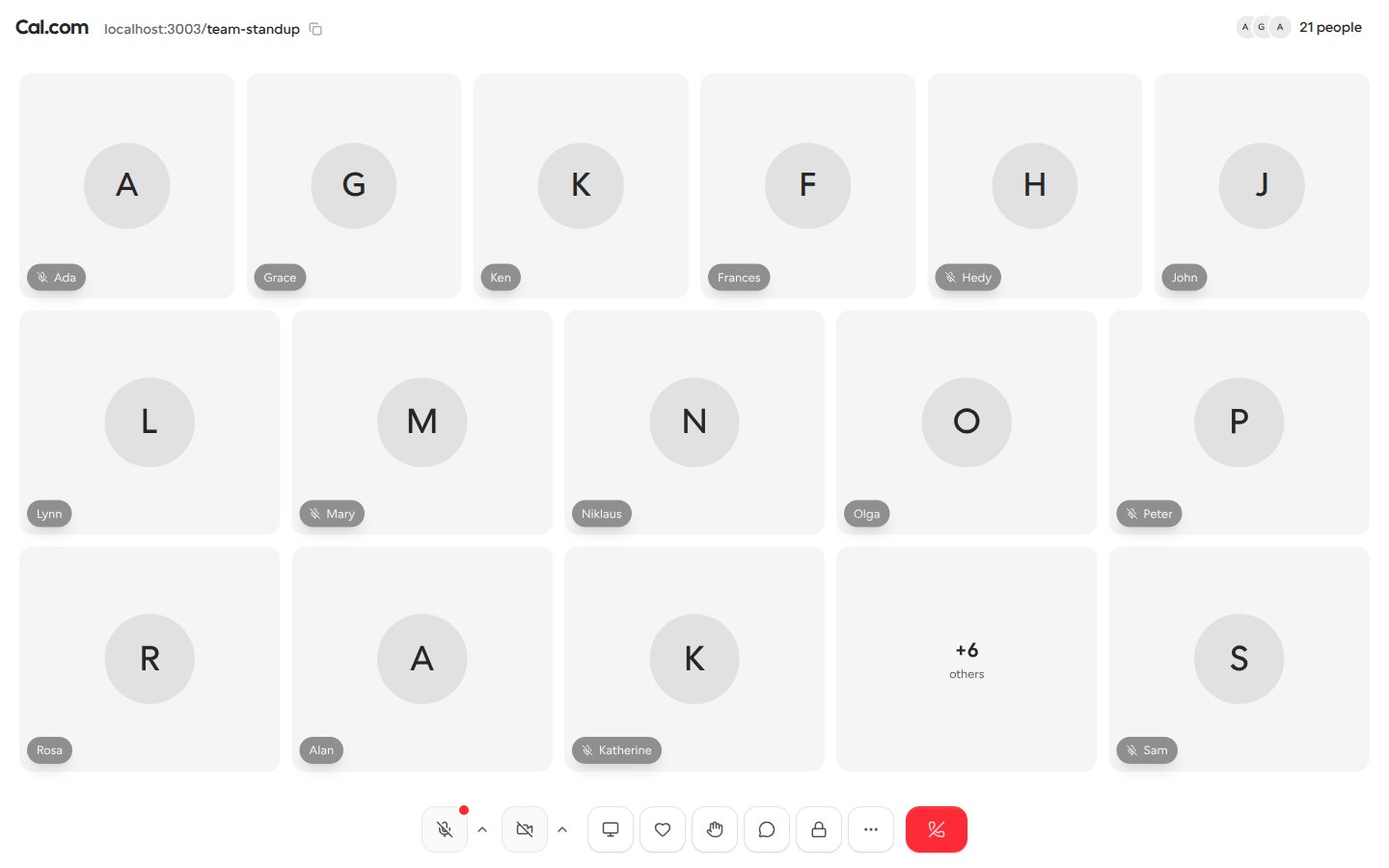
Auto is the default. It shows everyone as a grid where every tile in a row has the same height and the rows reach both edges of the call area. Someone holding their phone upright gets a portrait tile, trimmed slightly at the top and bottom, instead of a cropped landscape one. When their upright picture is trimmed, Auto keeps the upper part of it rather than the middle, so you see their face instead of their chin. This includes the tiles beside someone pinned or a shared screen. Speaker and Spotlight keep the crop centred. Video may be trimmed slightly at the sides to fill a row, your own included, the same as everyone else’s. While anyone else is in the call, your own tile always sits last, in the bottom-right corner. On a screen taller than it is wide, such as a phone held upright, every tile in the grid is the same width. Auto never switches to a speaker view on its own, however long one person talks. When someone is pinned, Auto keeps its grid. Each pinned tile comes first and is two rows tall. It keeps the shape of the person’s camera, or widescreen when their camera is off, and is never cropped. Everyone else stays at one row height beside and below it. Several pinned people sit side by side or stack in bands of two rows, whichever fills the call area best, so three pinned cameras are usually drawn two above one. On a narrow screen, such as a phone held upright, a pinned tile can take the full width with everyone else below it. When everyone on your screen is pinned, they share one grid, each at their own shape. See Pins in each layout.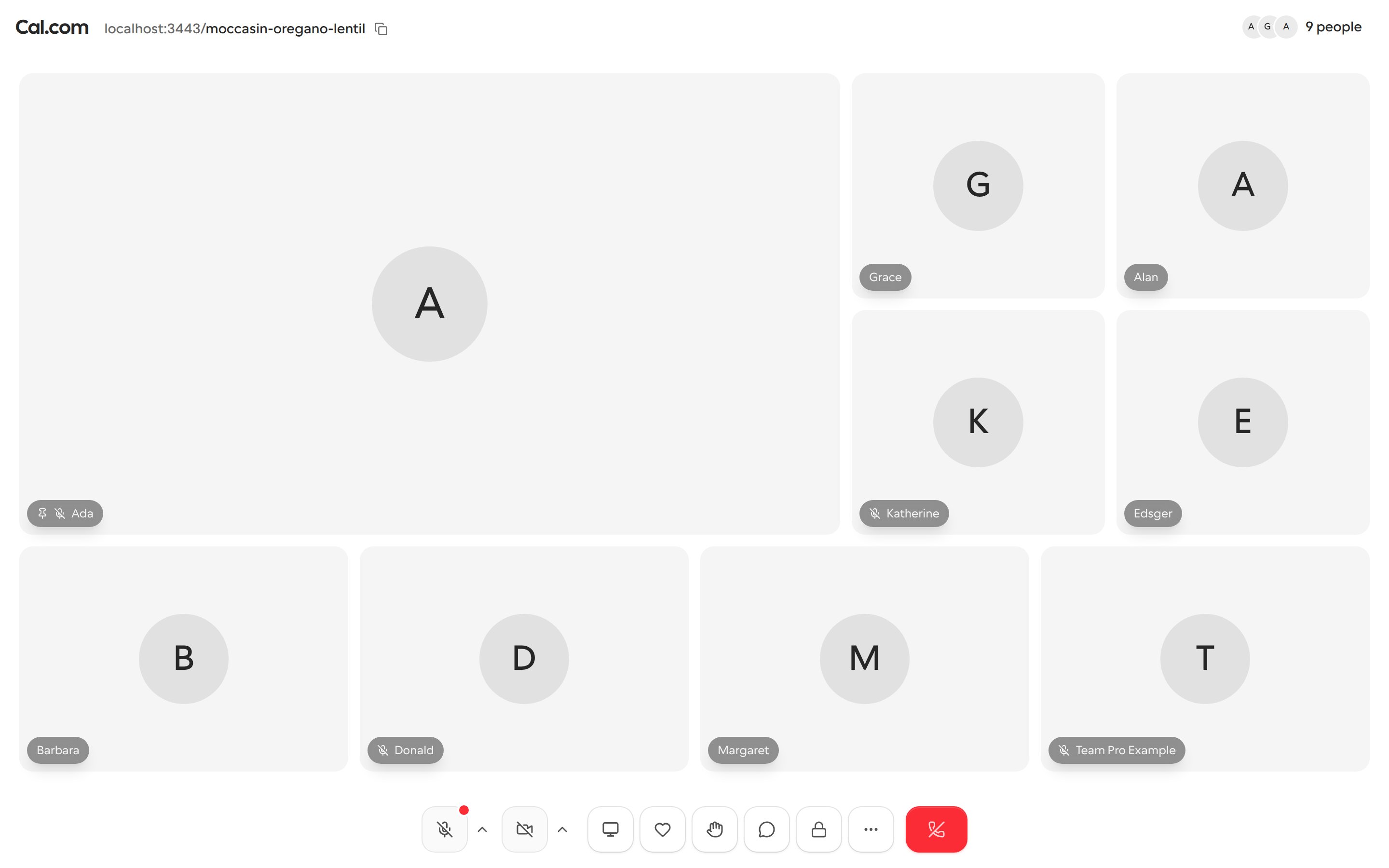
Speaker
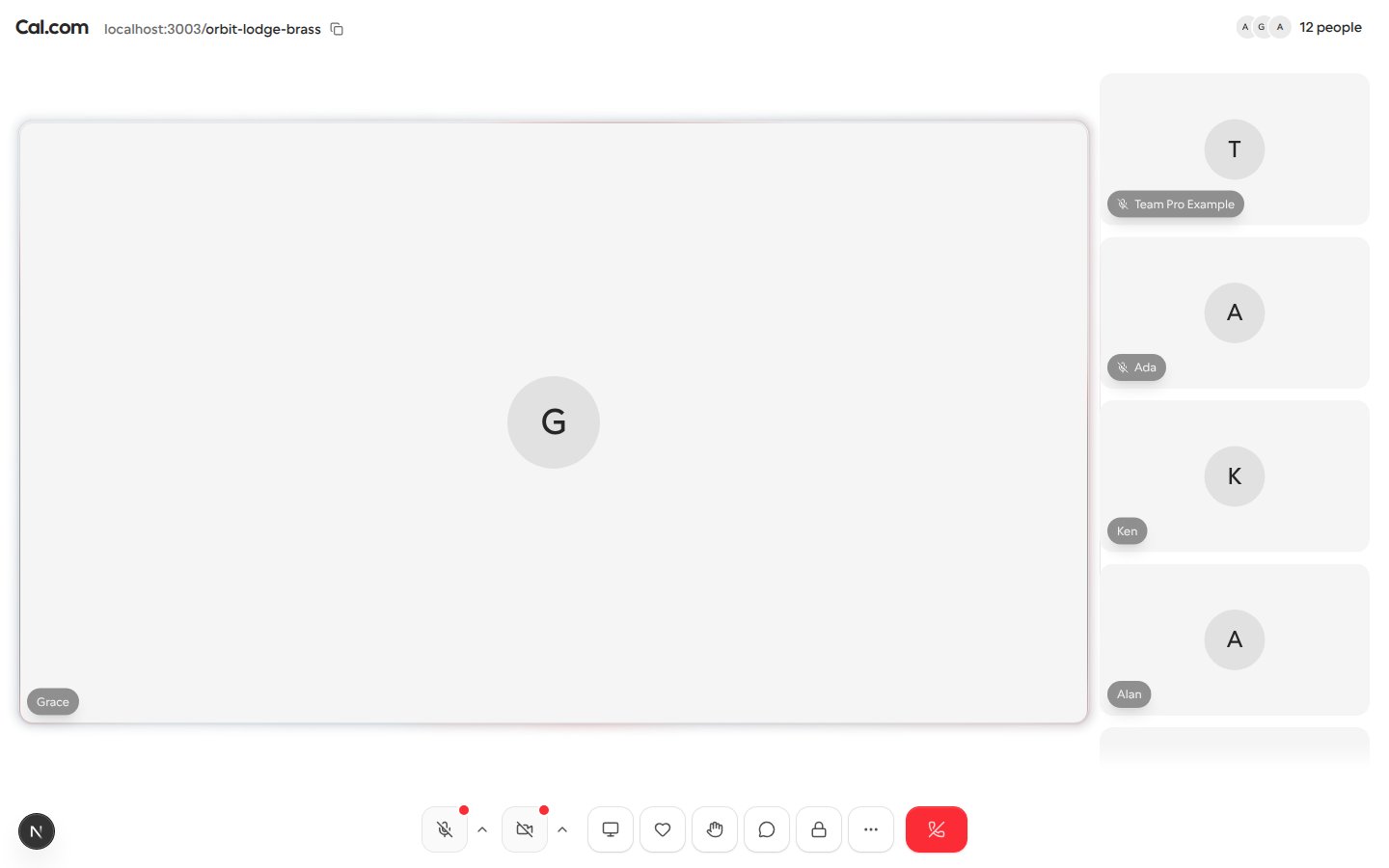
Speaker puts one person on a large stage and everyone else in a strip of smaller tiles. The stage follows whoever is talking, once they’ve talked for about three seconds without a break. A short reply such as “yes” lights up the speaker’s tile in the strip without taking the stage. Before anyone has spoken, another participant holds the stage, never you. The strip runs along the bottom of the call, or down the right side on a wide screen, whichever leaves the stage more room. When it holds more people than fit, it scrolls:- with a mouse wheel or trackpad. A vertical scroll moves the bottom strip sideways.
- by swiping with a finger on a touch screen.
- with the arrow keys, after selecting the strip.
Spotlight
Spotlight gives one person the whole call area, with your own tile floating in a corner. It shows the same person Speaker would put on the stage, or the pinned people if anyone is pinned. If you’ve pinned yourself, you fill the call area and your tile doesn’t float. When the person filling the call area is holding their phone upright on a landscape screen, their whole picture is shown on a dark background instead of being cropped to fit. The same applies to the other person in a two-person call, and to you when you’re alone in the call.Two-person calls
When the call is just you and one other person, every layout looks like Spotlight. The other person fills the call area, camera on or off, and your own tile floats over them in a corner. Drag it to another corner if it covers something. Cal Video remembers that corner in your browser. Pinning and screen sharing work as they do in Spotlight too, so a shared screen fills the call area with only your own tile floating over it. Your chosen layout doesn’t change. It stays selected under Layout and applies again as soon as a third person joins.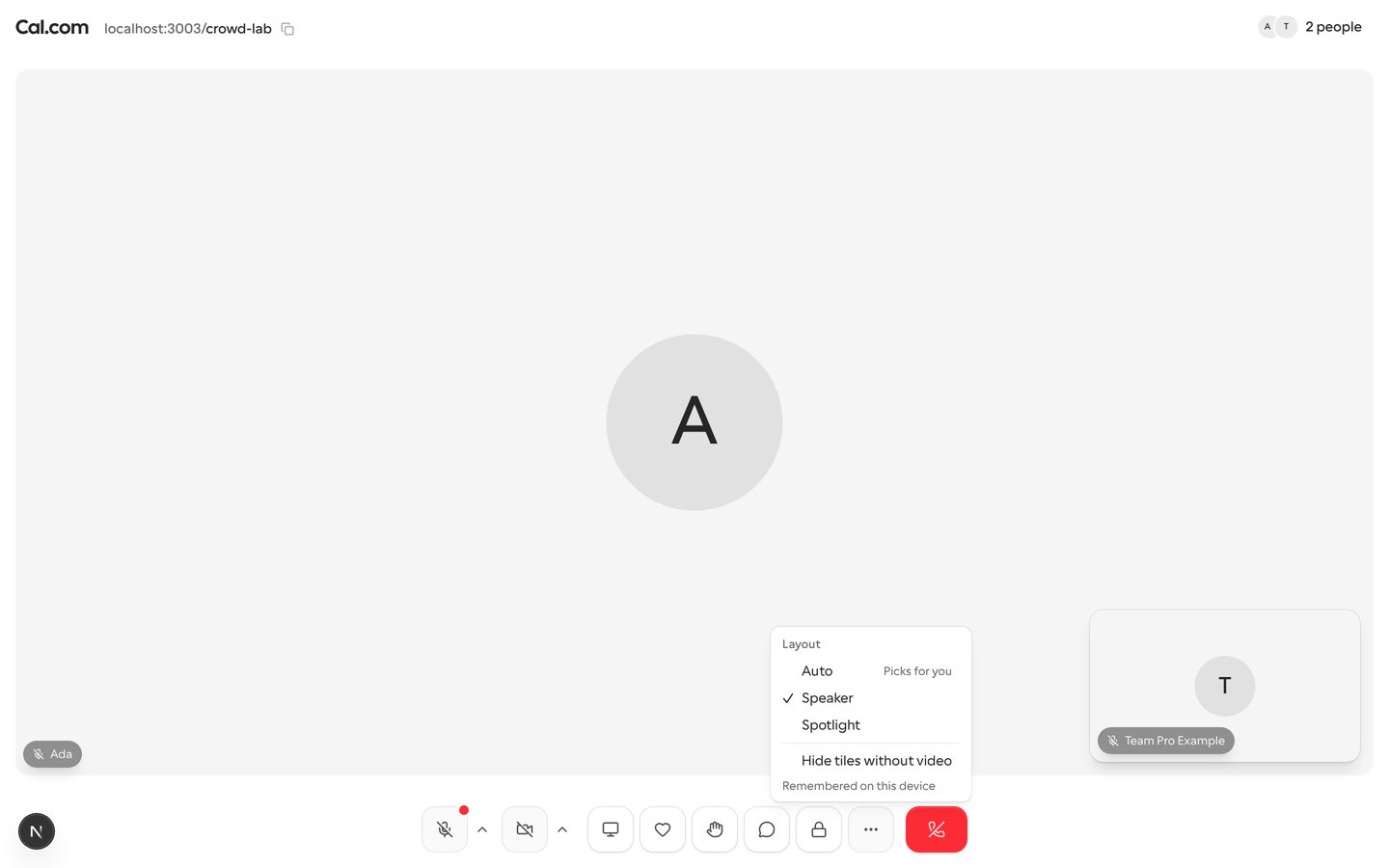
When you’re alone
While you’re the only person in the call, your own video fills the whole call area in Auto, Speaker and Spotlight, with Waiting for others to join below it. It’s trimmed at the edges to fill the space, the same way the other person is in a two-person call. If you share your screen while you’re alone, the share takes the call area as described in Screen sharing.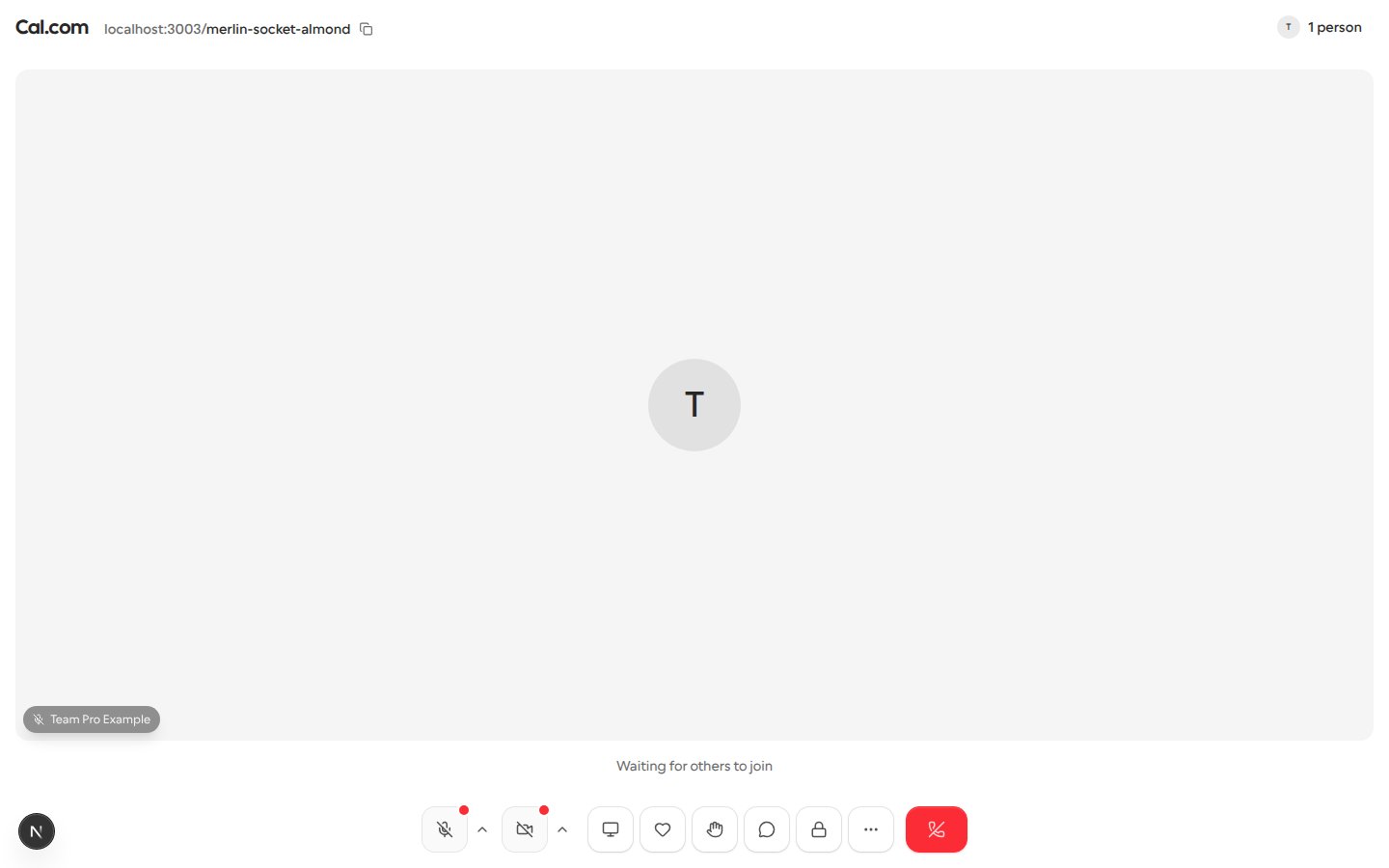
Who stays on screen in large calls
Auto shows as many tiles as your call area fits while each one stays wide enough to read a name, up to 16 on a large screen. A phone or a narrow window fits fewer. When more people are in the call than fit, the last tile is a +N others tile with the number of people not shown. Make the window smaller and the least active people move onto it. Make it larger and the most active of them come back on screen. The Speaker strip ends with the same tile when it can’t fit everyone. Select it to open the People panel with everyone in the call. You still hear everyone, whether or not they’re on screen. Cal Video keeps the people who are part of the conversation on screen:- Who is talking. Someone off screen who keeps talking takes the tile of the person on screen who has talked least recently. Anyone talking right now is never moved off screen.
- Tiles don’t jump around. A tile stays in the same place while its person holds it. Swaps happen one at a time and only after the newcomer has talked for a moment and the person they replace has been quiet for a while, so two people trading sentences don’t swap back and forth.
- Some people always stay. Pinned people are never moved off screen. Neither are you or someone sharing their screen.
- Someone leaves. Their tile fades out, and the most active person off screen takes their place, so nobody else’s tile moves.
Raised hands
In Auto and Speaker, a participant who raises their hand gets a tile straight away, without having to speak first, and keeps it while their hand is up. Raised hands come right after any pinned people and ahead of everyone else, at the start of the grid or the strip, in the order they were raised. If more hands are up than there are tiles, the earliest raised are shown and the rest wait in queue order. When the hand comes down, the tile stays where it is and follows the same rules as everyone else’s. Spotlight only has room for one person and you, so raising a hand doesn’t change it.Hide tiles without video
Turn on Hide tiles without video to remove people with their camera off from the layout. They’re counted on the +N others tile instead, and you still hear them. Some tiles stay even without video, so the call never loses track of who matters:- your own tile
- people who are pinned
- people with their hand raised
- someone sharing their screen
- the person Speaker or Spotlight is following
- someone whose connection dropped, so you can see they’re reconnecting
Screen sharing
When someone shares their screen in Speaker, the shared screen takes the stage on its own, shown whole and never cropped. Everyone stays in the strip, including the person sharing: their camera comes first, then anyone pinned, raised hands, you and everyone else. Speaker stops following whoever is talking until the share ends, but anyone who talks, the person sharing included, still lights up in the strip.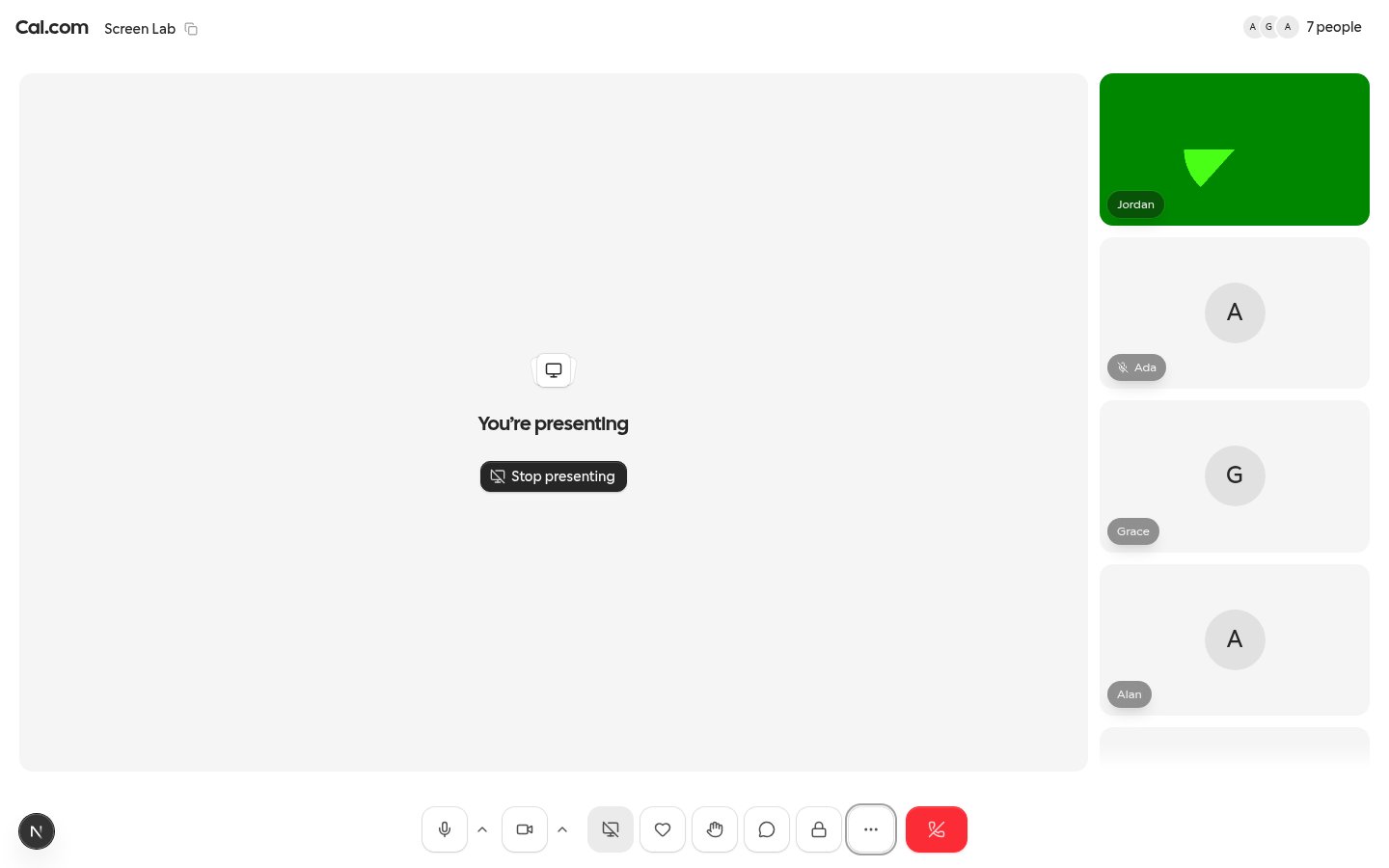
When more than one person shares
If two or more people share their screen at the same time, the newest share takes the stage. A pill such as 2 screens shared appears in the top-left corner of the shared screen, or of the You’re presenting panel when your own share is on the stage. Select it to open Show on your screen, which lists everyone sharing, with You for your own share, and pick the share you want on your stage.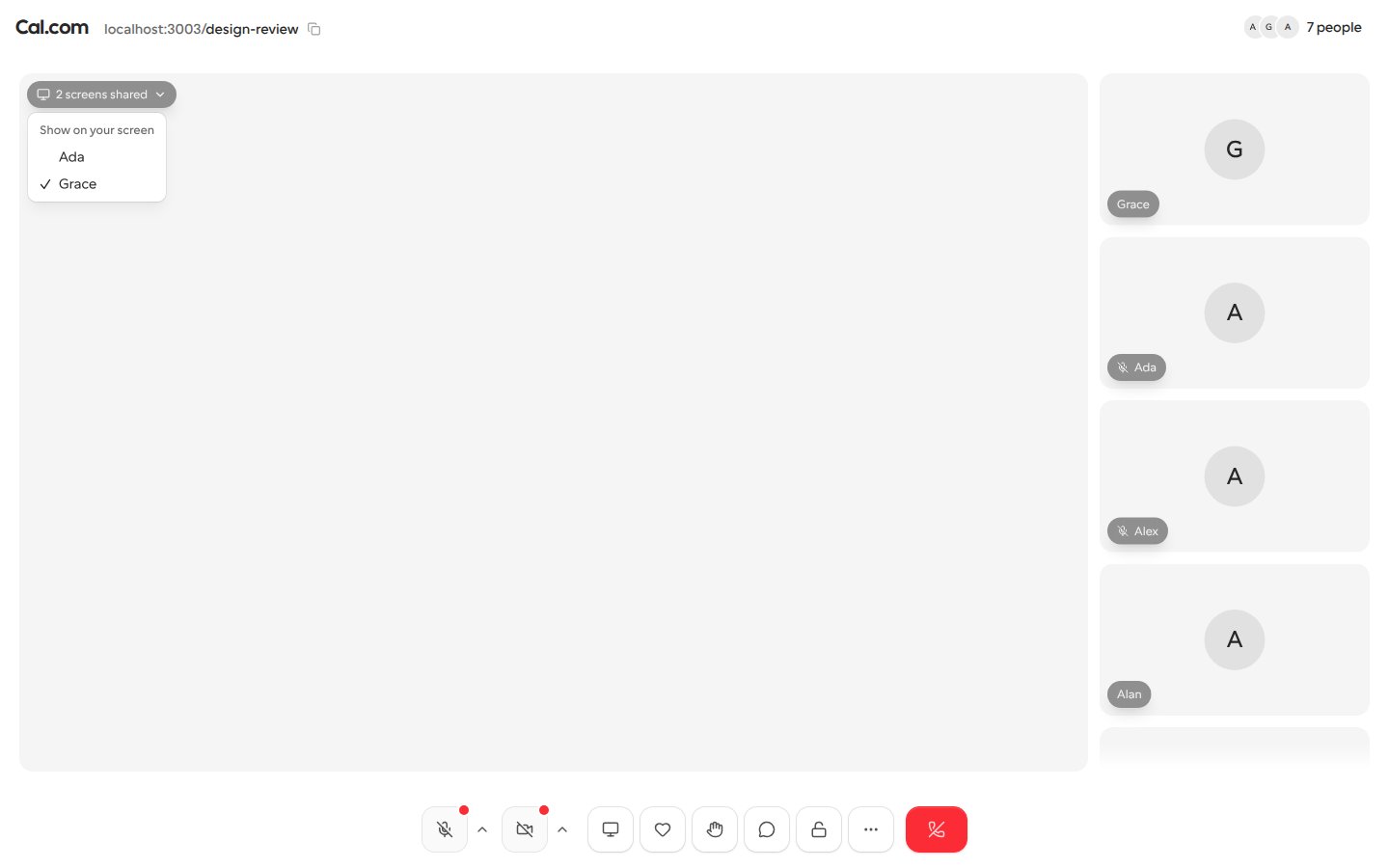
- someone starts a new share, including someone who stops and shares again. The new share takes over the stage, as any new share does.
- the share you picked ends. The newest of the shares still running takes the stage.
When you’re the one sharing
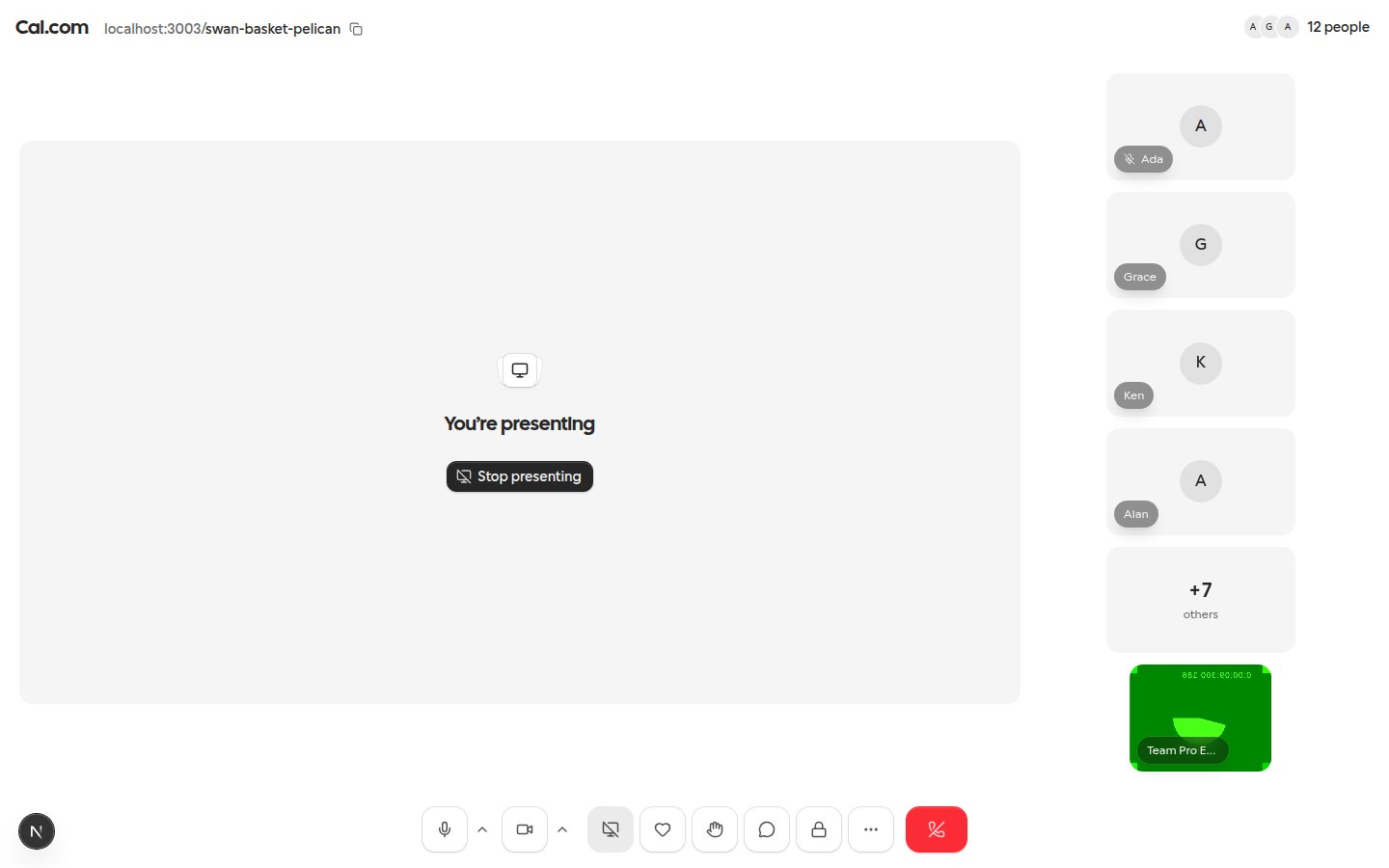
While you share your screen, you don’t see your own shared screen in the call. In every layout, and in Cal Audio rooms, a You’re presenting panel with a Stop presenting button takes its place, so sharing your entire screen or the call’s own tab never shows the call inside itself. Everyone else still sees your shared screen as usual.