

Join from a second tab
1
Keep your first tab in the call
Open the same Cal Video room link in another tab of the same browser profile.
2
Select Join here too
On the Ready to join? screen, the notice You’re already in this meeting in another tab
offers Switch here and Join here too. Select Join here too to join without
disconnecting your first tab.
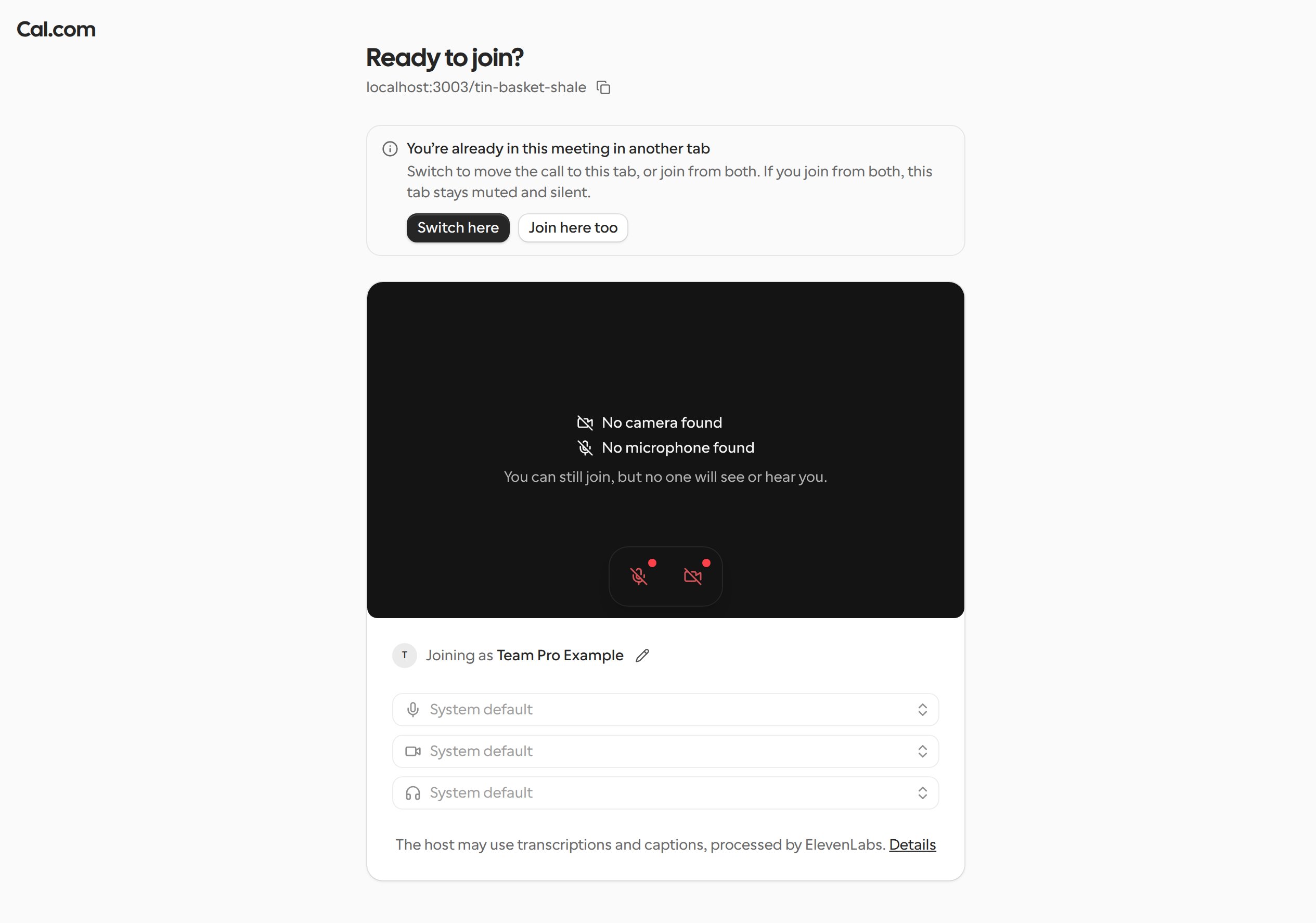
Listen and talk from your first tab
The second tab stays muted and silent: its microphone button is disabled, and neither the mute shortcut nor hold to talk can turn its microphone on. It also plays no call audio, including other people’s microphones and screen share audio. Keep using your first tab to listen and talk. You can present from the second tab. For sharing a presentation’s sound, see Cal Video screen share audio.Limits and switching tabs
Only one additional tab in the same browser can join this way. If you open a third tab, the notice offers only Switch here. Switching moves the call to that tab and ends it in your other tabs. An ordinary join from another device also replaces your existing connections. Each tab counts as a separate connection toward the room’s participant limit. Join here too needs a free place in the room, so you cannot use it when the room is full.This choice is offered on a Cal Video room’s pre-join screen. Booking calls and Cal Audio rooms
join automatically and do not show it. It also requires a browser that supports detecting other
call tabs; in a different browser profile or without that support, joining replaces the earlier
connection.