

Share audio with your screen
1
Start a screen share
Select Share screen in the call’s control tray. Your browser opens its picker to choose a tab,
window or screen.
2
Turn on audio in the browser's picker
In Chrome or Edge, tick the picker’s audio option, for example Share tab audio when you share a
tab, then start sharing.
What the presenter sees
While you share, the You’re presenting panel takes the place of your own share. A bar across the top of the panel holds Stop presenting. If the bar shows no audio control, your share is silent.Mute your share’s audio
When your share carries sound, the bar also shows a Presentation audio switch, turned on. Switch it off to mute the share’s sound for everyone while you keep presenting: the speaker icon leaves the share’s name pill. Switch it back on to resume the sound.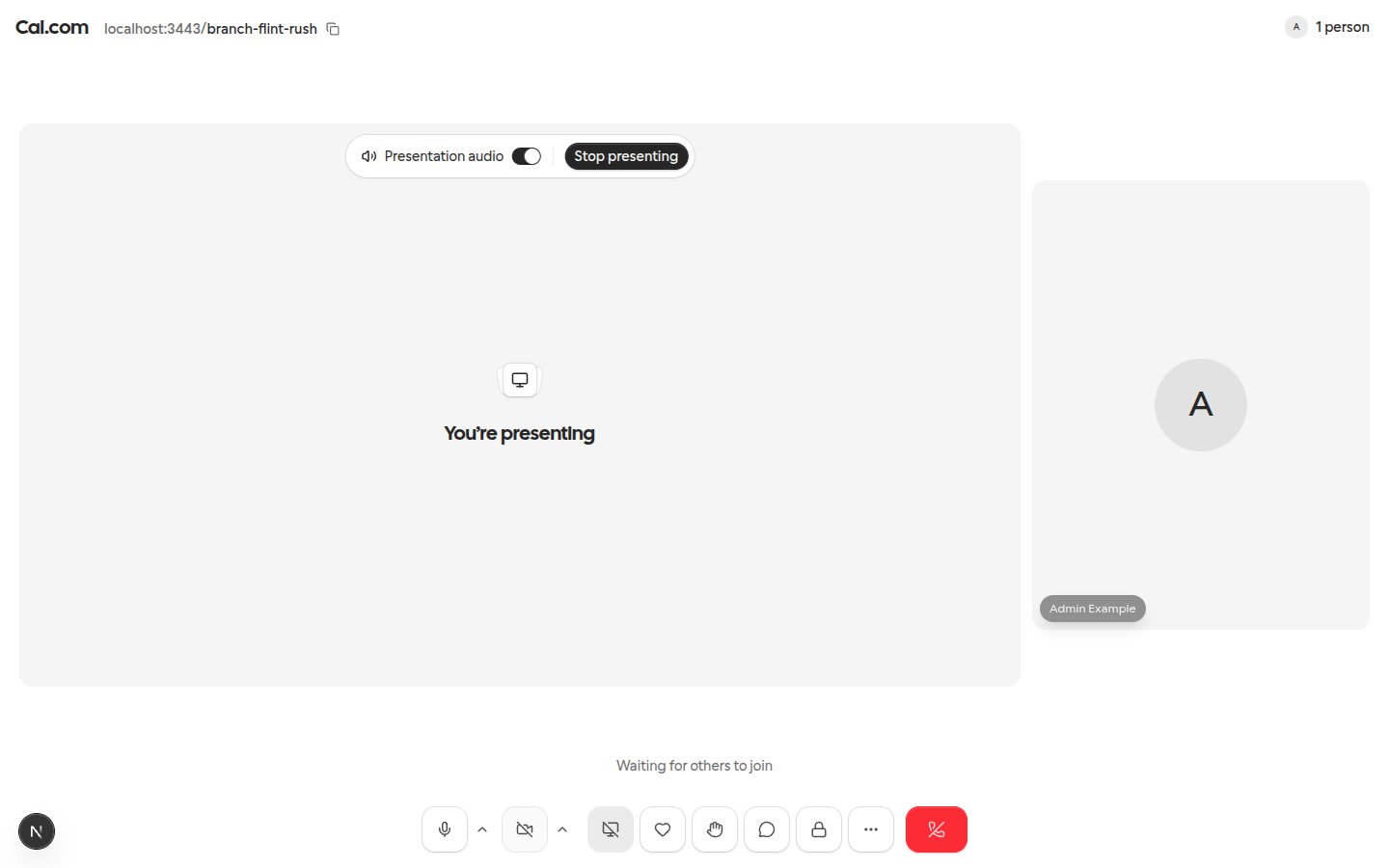
On self-hosted instances that switch Cal Video to RealtimeKit (
CAL_VIDEO_PROVIDER=realtimekit),
share audio can’t be muted mid-share. The bar shows a speaker icon and Sharing audio instead of
the switch. To stop sharing sound, stop presenting and share again with the audio option unticked.What everyone else sees and hears
Everyone else in the call hears the share’s sound. The name pill on a shared screen with sound shows a speaker icon next to the presenter’s name. Screen readers announce it as With sound.- Your speaker: the share plays through the speaker you chose for the call, just like everyone’s microphones. To change it, open Microphone and speaker options in the control tray and choose a Speaker. Some browsers, such as Firefox, don’t let you choose a speaker, so the share plays through your device’s default output.
- Shares off your stage: you hear a share even when it isn’t the one on your stage. If several people share with sound at once, you hear all of them.
Browser support
Firefox and Safari share the screen without sound, so viewers see no speaker icon and the presenter
sees no audio control in the presenting bar. This only limits presenting: viewers on Firefox and Safari still hear
a share with sound from someone on Chrome or Edge.