

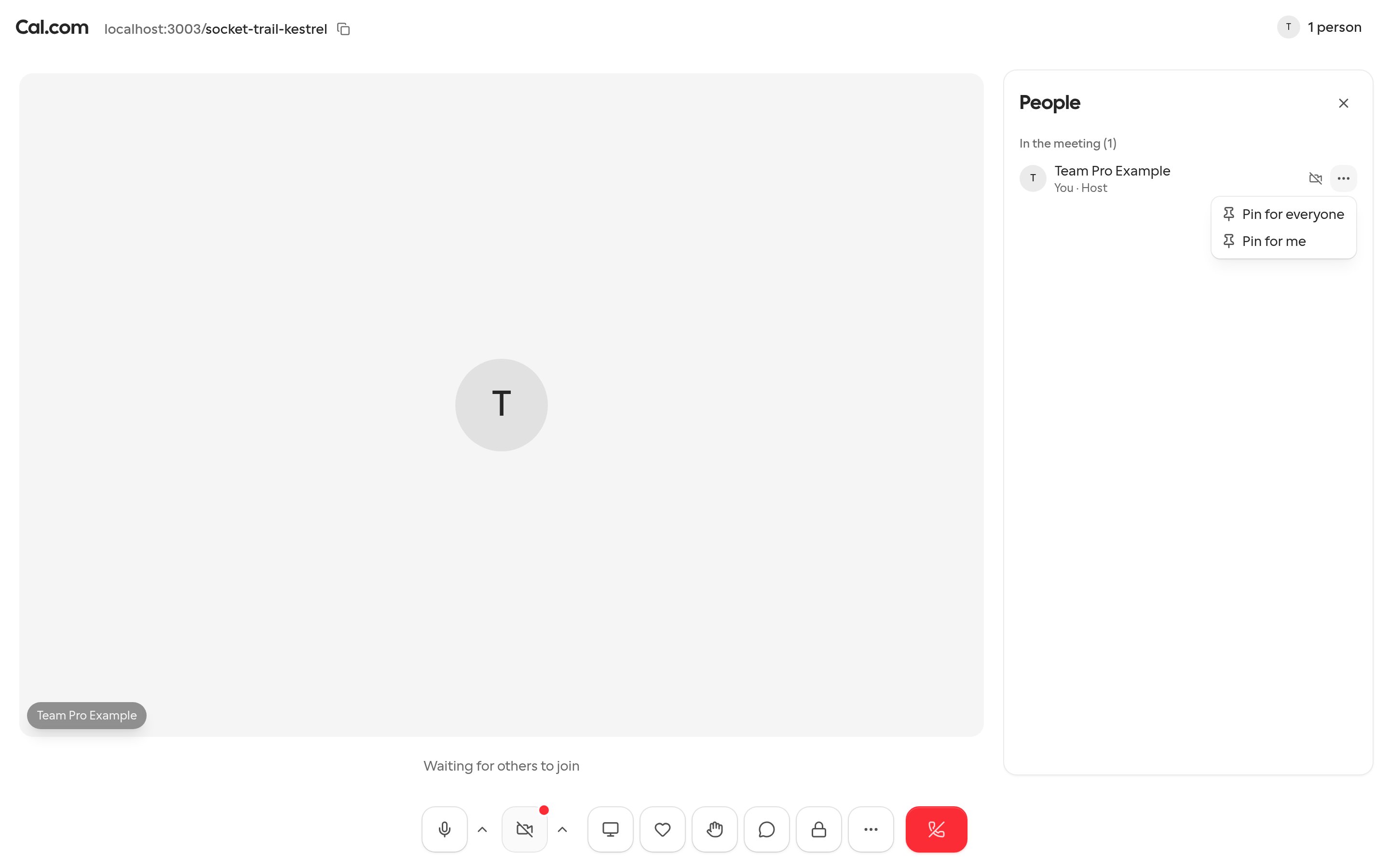
Pin someone for yourself
The quickest way is from the person’s tile: point at it and select the pin button in its bottom-right corner. The person is pinned right away; select the button again to unpin them. On someone a host pinned for everyone, the button is unavailable and says Pinned for everyone by a host. On phones and tablets, the button is always shown, so you don’t need to point at the tile first. On other people’s tiles, hosts see an options button (⋯) in that corner instead, with Pin for me alongside the host actions. See Pin someone for everyone. You can also pin from the People panel:1
Open the People panel
Select the people button in the call header to open the People panel.
2
Open the person's options
Select the options button next to the person you want to pin.
3
Select Pin for me
The person moves into the main space on your screen and a toast confirms “Name is pinned on your
screen. Only you see this.”
Pin someone for everyone
Hosts can pin up to four people for everyone in the call. Open the person’s options, either with the options button (⋯) in the bottom-right corner of their tile or next to their name in the People panel, and select Pin for everyone. To remove the pin, select Unpin for everyone. The tile’s options list the same actions as the person’s row in the People panel, in the same order, so a host can also lower someone’s hand, mute them, stop their screen share or remove them straight from their tile. Remove from meeting asks you to confirm first, just as it does in the panel. On a host’s own tile, the only action is pinning yourself for everyone, so the corner shows a pin button that pins or unpins you straight away instead of a menu.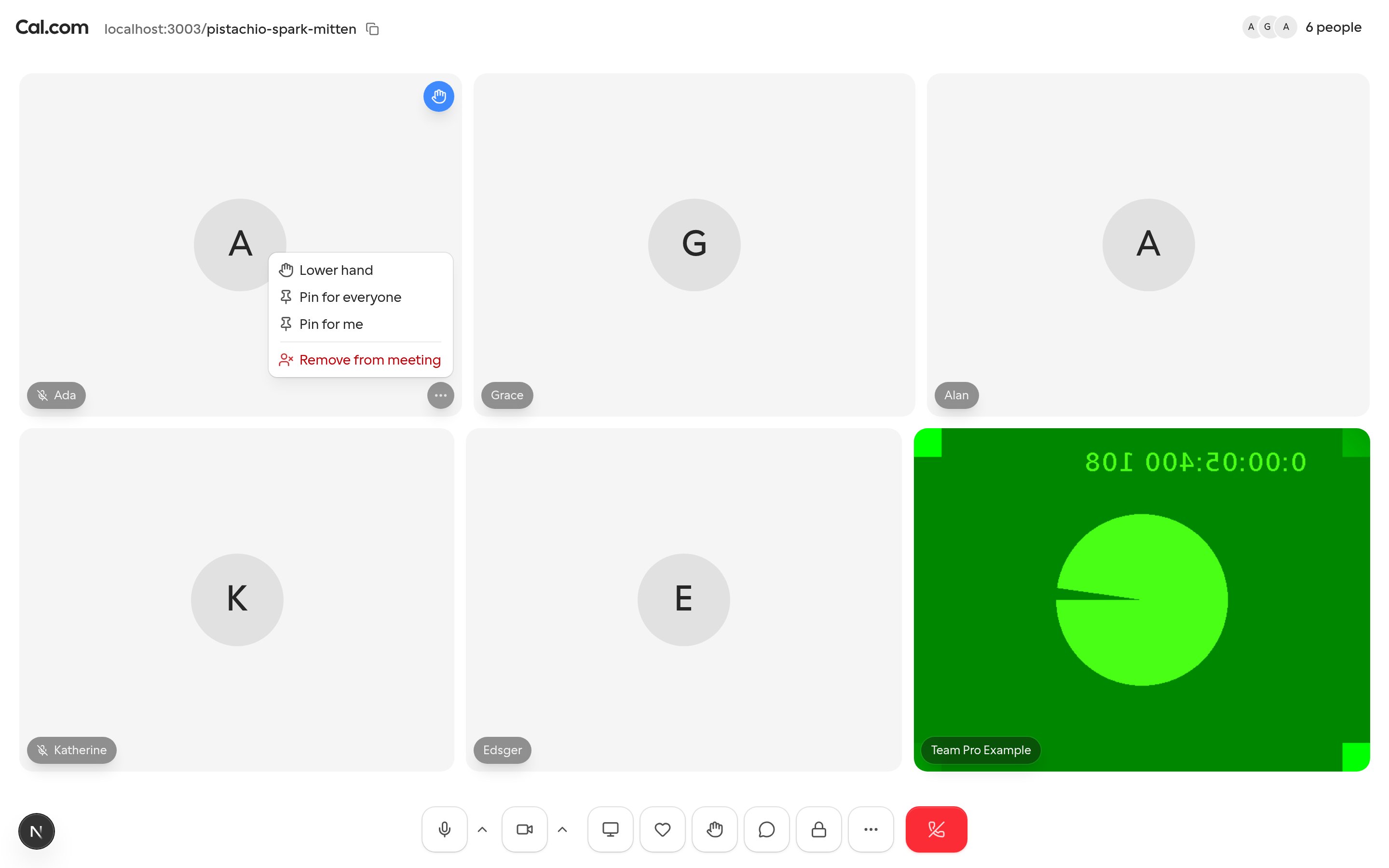
- Everyone in the call sees the pinned people in the main space, in the same order.
- Everyone sees a toast saying who is pinned for everyone, for example “Ada and Grace are pinned for everyone”, and another when a pin is removed. The host who made the change sees “Everyone now sees Name on stage.”
- People who join later see the same pins in the same order, even after every host has left the call.
How pins combine
Your screen shows at most four pinned people. Pins for everyone come first, in the order the host pinned them, followed by your own pins in the order you made them.- Pinning someone already pinned for everyone: they keep the For everyone label, and the toast says “Name is already pinned for everyone.”
- A host’s pins push you past four: your most recent own pins are removed until four remain. They don’t come back if the host later unpins someone, so pin them again if you still want them.
- A pinned person leaves: their pin is removed, and everyone else stays pinned in the same order. If they rejoin, pin them again.
Limits
When four people are pinned on your screen, Pin for me is greyed out for everyone else, with the hint Up to 4 pinned. When a host has pinned four people for everyone, Pin for everyone is greyed out with the hint Up to 4 pinned for everyone. Unpin someone to free up a place.What participants see
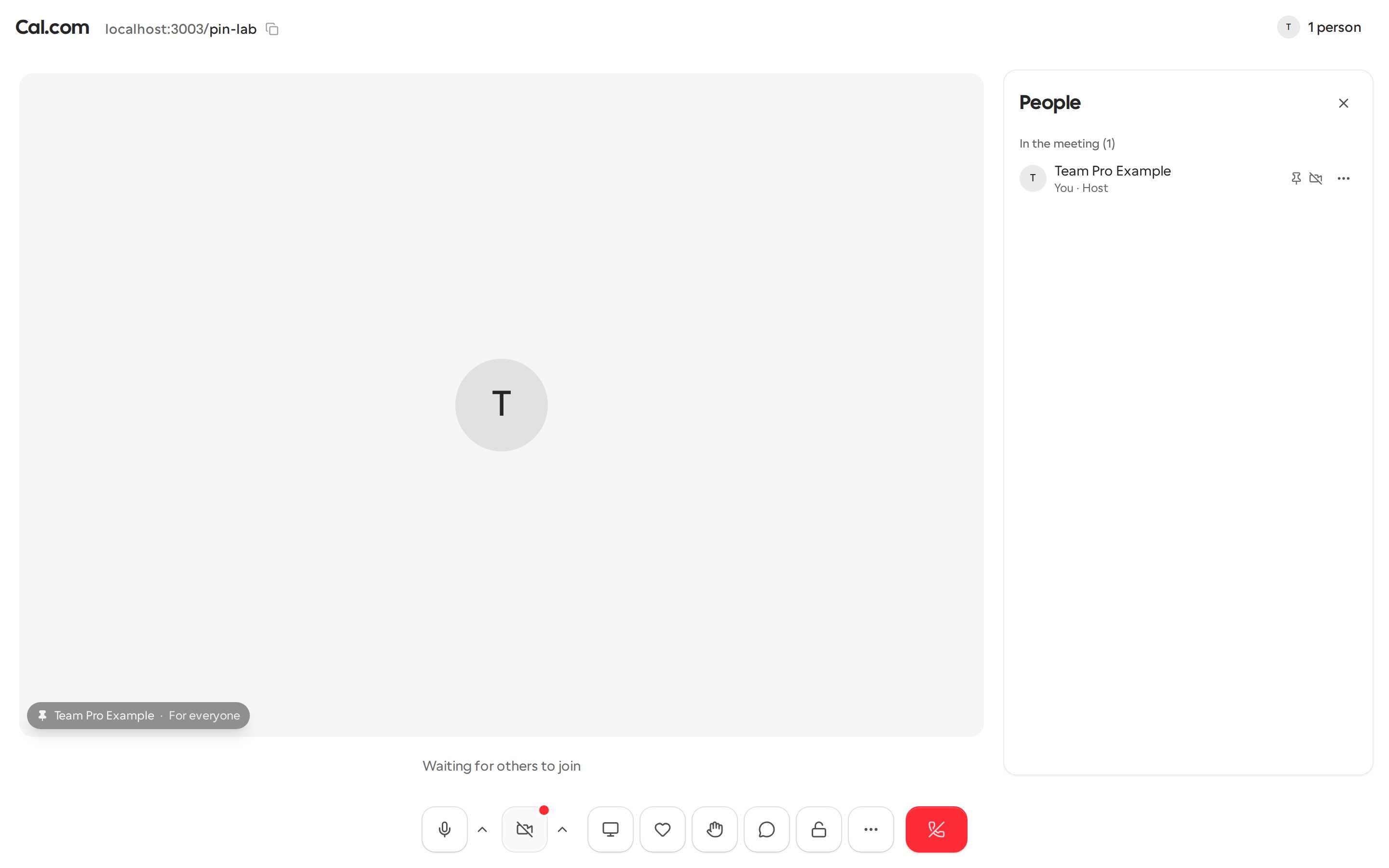
A pinned person’s name pill shows a pin icon before their name:- A filled pin and the label For everyone when a host pinned them, so you know everyone else sees them too.
- An outlined pin and no label when only you pinned them.
Pins in each layout
How pinned people are drawn depends on the layout you choose under Layout in the call’s More menu. The layout only changes your own screen. For more on each layout, see Cal Video layouts.Pins during a screen share
When someone shares their screen, the screen takes the main space ahead of the pins. In Auto, the pinned people lead the grid beside the screen, right after the person sharing, at the same size as everyone else. In Speaker, they lead the strip, right after the person sharing. In Spotlight, only your own tile floats over the shared screen. If more than one person is sharing, you can choose which share is shown on your screen, as described in Cal Video layouts. Hide tiles without video never hides a pinned person. Outside Spotlight, people with a raised hand are shown after everyone pinned. For more on raised hands, see Cal Video reactions. Pinning people on screen is separate from pinning a message in Cal Video chat. Like the rest of the call, the pin options, labels and toasts show in your browser’s language. See Cal Video localization.Availability
Pinning isn’t available in Cal Audio rooms. Pin for everyone works the same on every video
provider Cal Video runs on, including RealtimeKit, because pins for everyone are shared through
Cal Video chat. If chat isn’t connected, hosts don’t see Pin for
everyone; Pin for me still works.